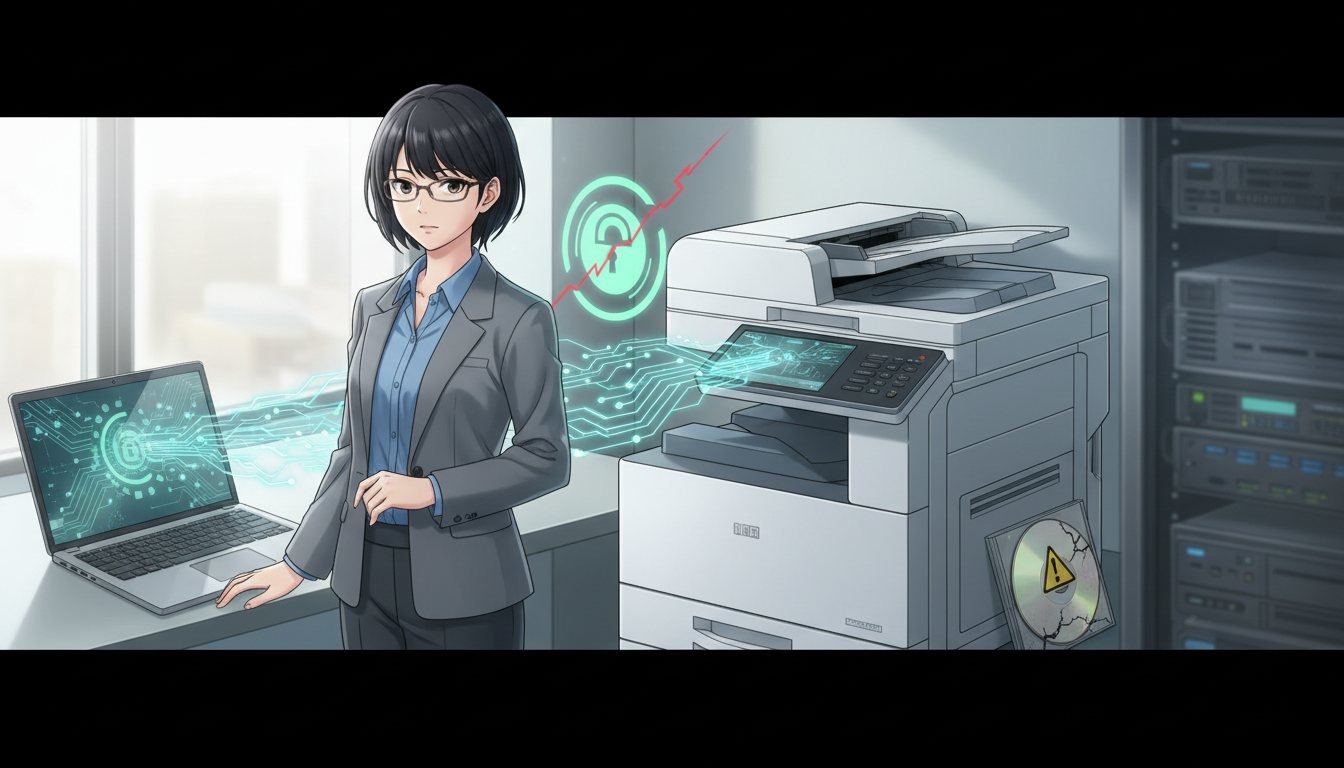


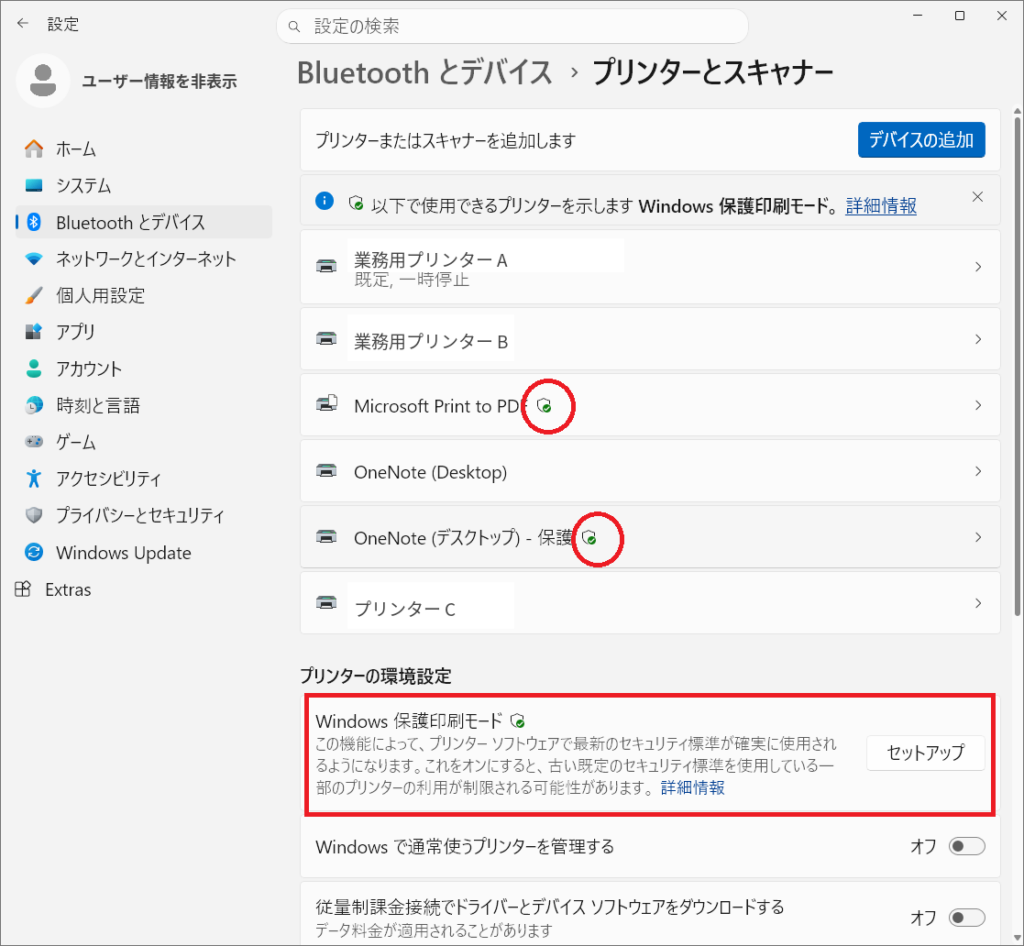
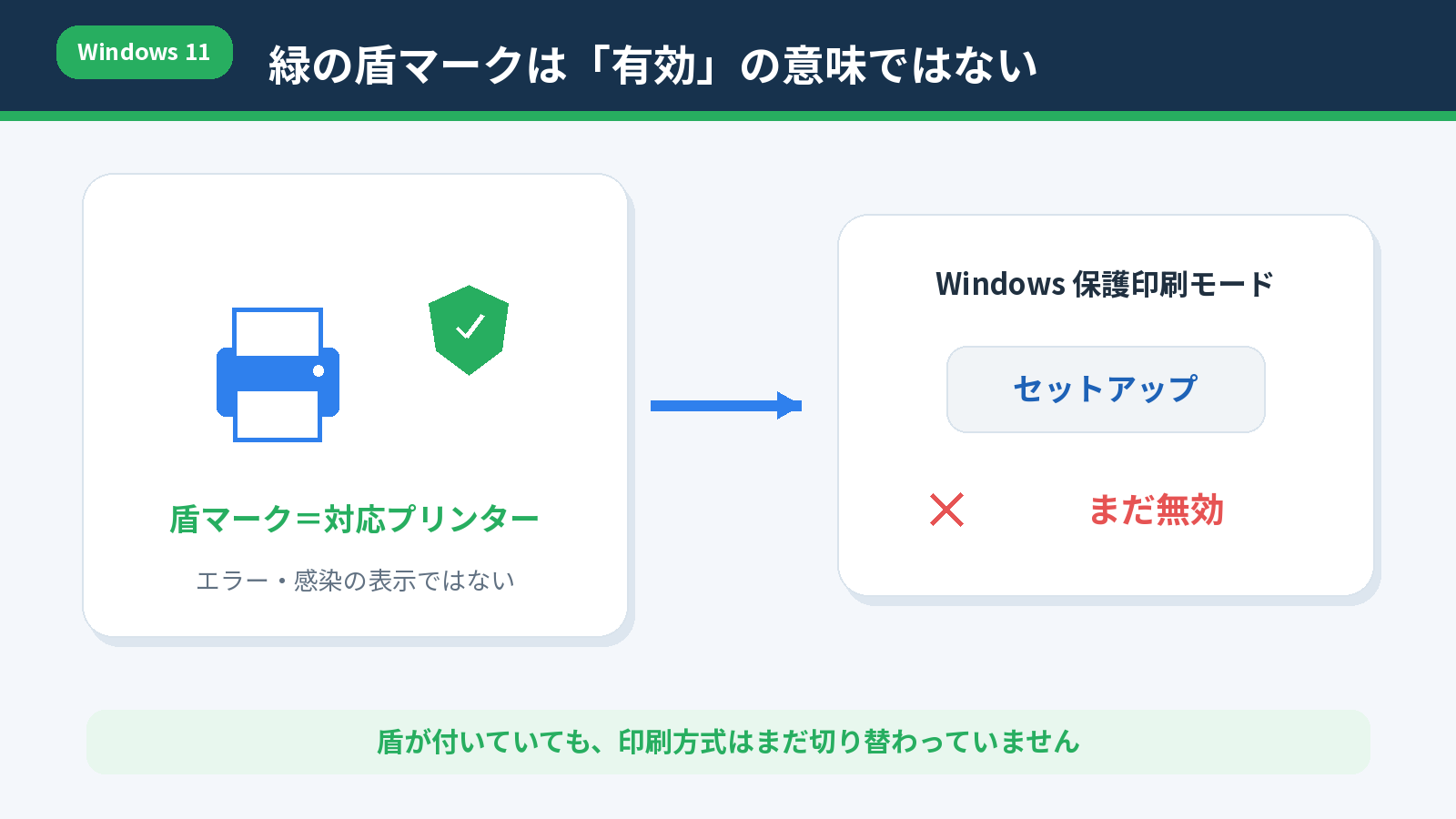
Did green shield icons or the word “Protected” suddenly appear beside printers in Windows 11? That does not necessarily mean Windows Protected Print Mode (WPP) is currently enabled. In our original Windows 11 test, the shield identified printers that support protected printing; the settings page still offered Set up, meaning the PC had not switched into that mode.
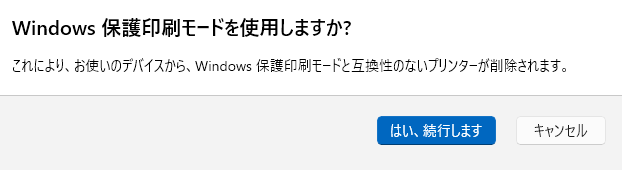
The dangerous step is enabling WPP without checking printer compatibility: Windows can uninstall printers that use third-party drivers. Disabling WPP later does not automatically restore every deleted printer. This English guide translates the original Japanese hands-on article and cross-checks Microsoft documentation, November 8, 2026.
Green shield vs. Windows Protected Print Mode: the answer
| What Windows displays | What it means |
|---|---|
| Green shield beside a printer | The installed printer is presented as compatible with the protected-print workflow. |
| Windows protected print mode: Set up | The mode is not yet active. Pressing Set up begins activation. |
| Protected mode is on / Turn off is offered | The protected mode is active. |
| A third-party driver-based printer has no shield | It may be removed if you enable protected printing, depending on its installation and compatibility. |
| The word Protected in a printer’s name | It does not mean the printer is malware-infected, locked by a PIN or already forcibly changed. |
Where to find the setting
- Open Settings in Windows 11.
- Go to Bluetooth & devices → Printers & scanners.
- Look for the green shield symbol on printer tiles and the separate Windows protected print mode setting.
- If the setting says Set up, the feature is not yet enabled. Do not press through confirmation dialogs until you have checked driver compatibility and recovery requirements.
What exactly changes when you enable protected printing?
WPP, available in modern Windows 11 releases, is designed to reduce risks from traditional third-party printer drivers by using Windows’ built-in modern printing stack, often called Windows Ready Print. It relies on standardized protocols and compatible printer capabilities, such as IPP/Mopria. It is not a feature requiring users to enter a PIN each time they print.
| Conventional setup | Protected print mode |
|---|---|
| Vendor-specific third-party driver processes the job | Windows’ built-in printing stack handles compatible devices |
| Some manufacturer features are implemented by legacy driver components | Some features may require modern print support apps or differ from their legacy implementation |
| A wide range of older printer models/drivers may work | Unsupported driver-dependent printers are removed or unavailable while WPP is active |
| Existing printer objects remain until deliberately changed | Enabling the mode can uninstall third-party driver printers and remove drivers from the driver store |
What happens to installed printers when WPP is enabled?
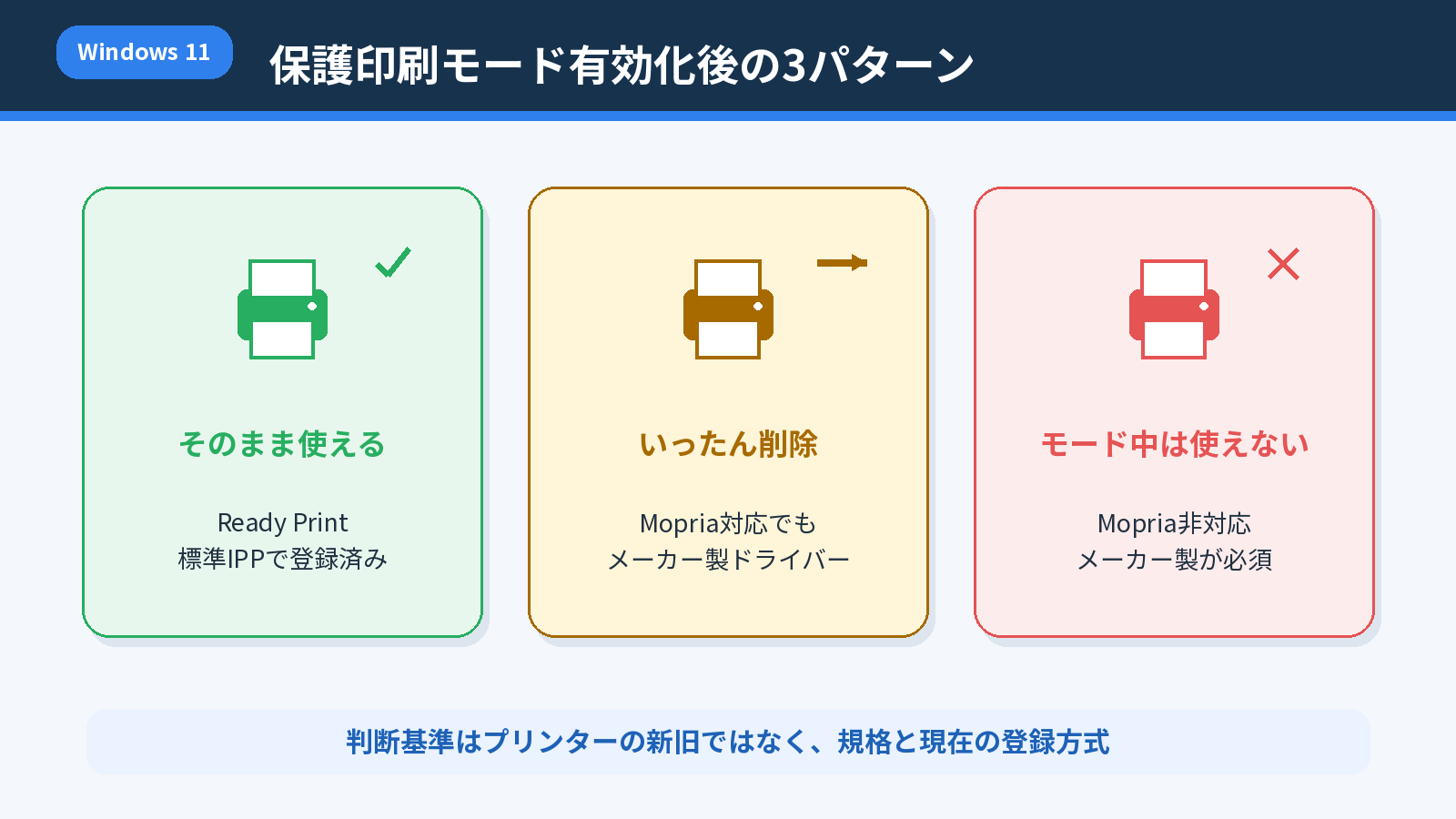
Microsoft states that printers using third-party drivers are uninstalled when you enable Windows Protected Print Mode. The corresponding drivers are removed from the driver store and cannot be used while WPP is active. A Mopria-certified model formerly installed with a third-party driver might be reinstalled using Windows Ready Print, but that is an additional step and device functionality can differ.
If you turn protected printing off, incompatible printers are not automatically restored. You may need to reinstall them and their vendor driver packages manually. This is particularly important for company PCs with print queues, accounting codes, specialized trays, finishing options and document-management software.
Before you select Set up: six checks
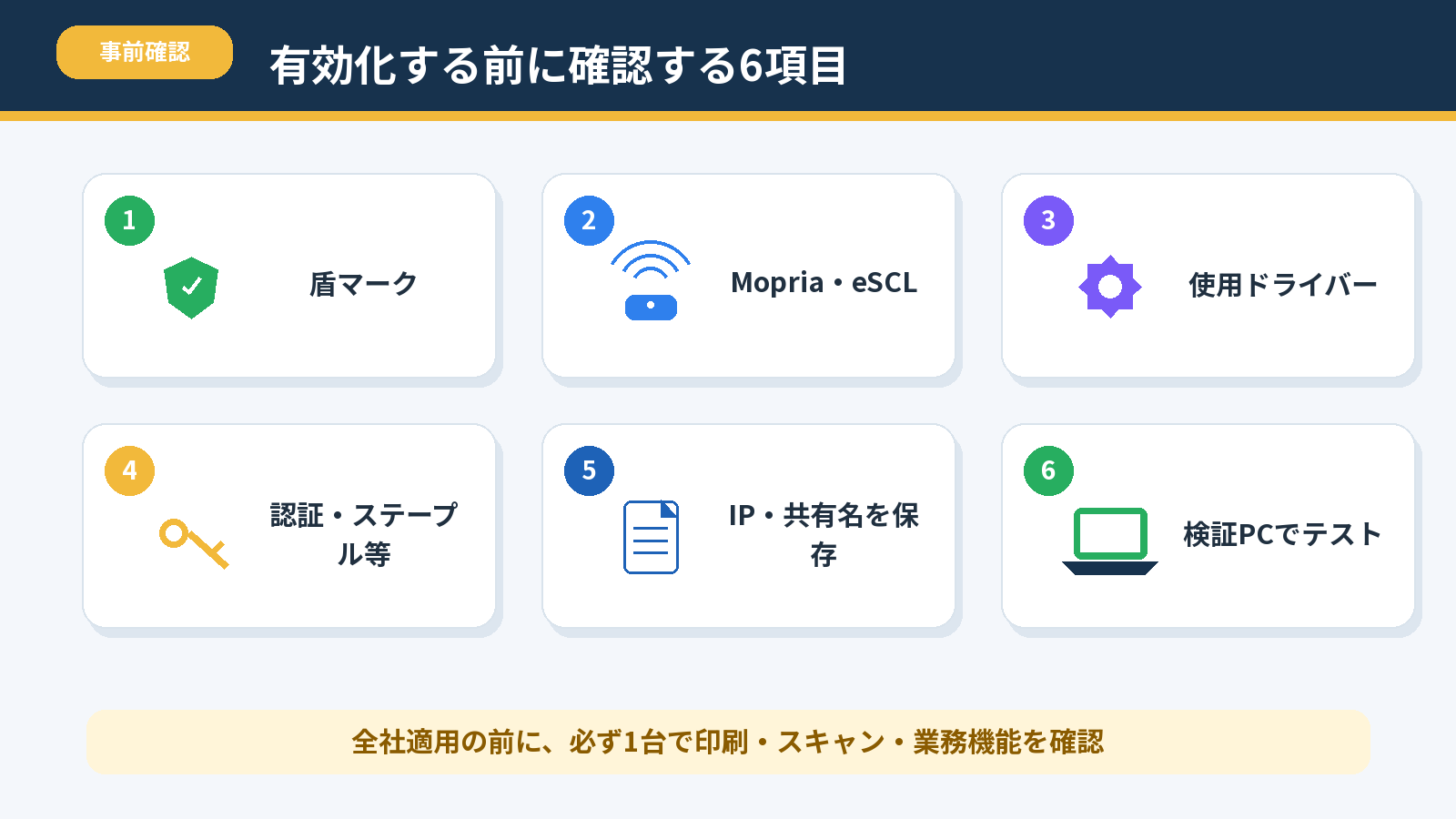
- List every installed physical and virtual printer, the driver type, print server and connection method.
- Verify that business-critical models support modern IPP/Mopria/Windows Ready Print operations.
- Test scanning, duplex, finishing trays, secure print, copy counters and other vendor-specific workflows separately.
- Collect vendor-approved installers and installation instructions before switching.
- Inform users that print queues may disappear, and schedule a test on an expendable pilot PC first.
- Document the recovery process, including re-adding printer connections after disabling WPP.
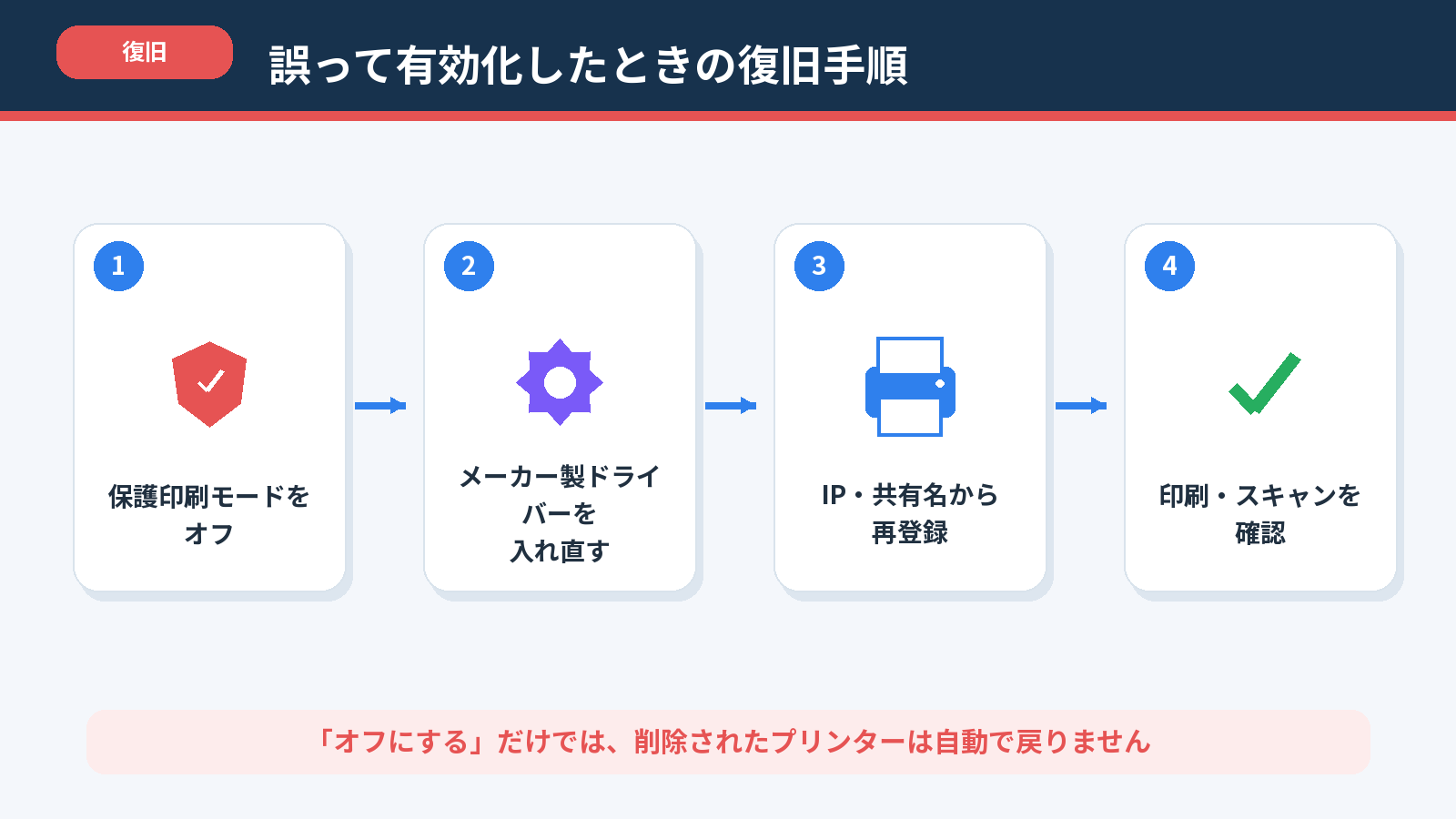
How to disable WPP if you enabled it accidentally
- Go to Windows 11 Settings → Bluetooth & devices → Printers & scanners.
- Open the Windows protected print mode control and choose to turn it off.
- Follow any system prompts and allow Windows to apply the setting.
- Check the printers list. Any missing vendor-driver queues need to be reinstalled using the appropriate software or deployment mechanism.
- Print a test page and validate all required features. If printing is still broken, check the print spooler and any enterprise print management configuration.
Can organizations manage this with Group Policy or Intune?
Microsoft documents enterprise management controls for WPP, including policy-based configuration. Before applying such policies at scale, test how printer deployment scripts, Universal Print, print servers and current manufacturer drivers respond. A security setting that removes printing capability on all devices can create operational disruption even if its underlying protection is beneficial. See Microsoft’s enterprise guidance.
Common problems and FAQs
A printer says Protected. Is malware or an error involved?
Not from that label alone. In the original test, it indicated compatibility with a Windows printing security mode, not a detected threat or malfunction.
Does a green shield mean I have already turned on WPP?
No. Confirm the separate Windows protected print mode control. A Set up button means the mode is not yet enabled.
Will a USB printer definitely stop working?
No universal statement is possible. Connection type alone is not the determining factor; driver and modern-print-stack compatibility matter. Check the model.
Can I just click Yes and switch back if it causes trouble?
Not safely without a backup plan. Switching back does not automatically restore deleted queues or third-party drivers.
What about scanning and multifunction printer features?
Scan paths and manufacturer-specific workflows may be affected differently from basic printing. Validate all required functions during a controlled pilot.
Sources and translation notes
- Microsoft Learn: Windows Protected Print Mode
- Microsoft Learn: Windows Protected Print Mode FAQ
- Microsoft Learn: Windows Ready Print
- Original Japanese guide with authentic screenshots
English adaptation checked November 8, 2026. Original screen captures reflect Japanese Windows and an earlier build; they are not fabricated English UI screenshots. Verify today’s settings and supported devices before deployment.