


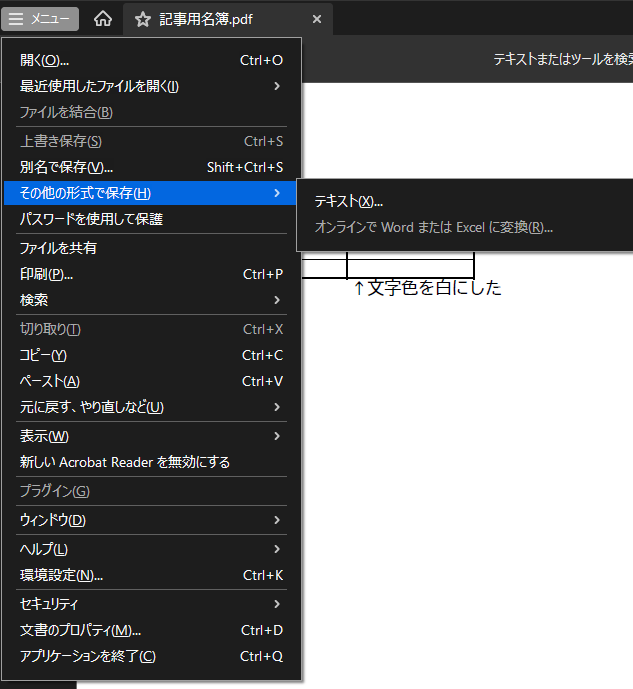
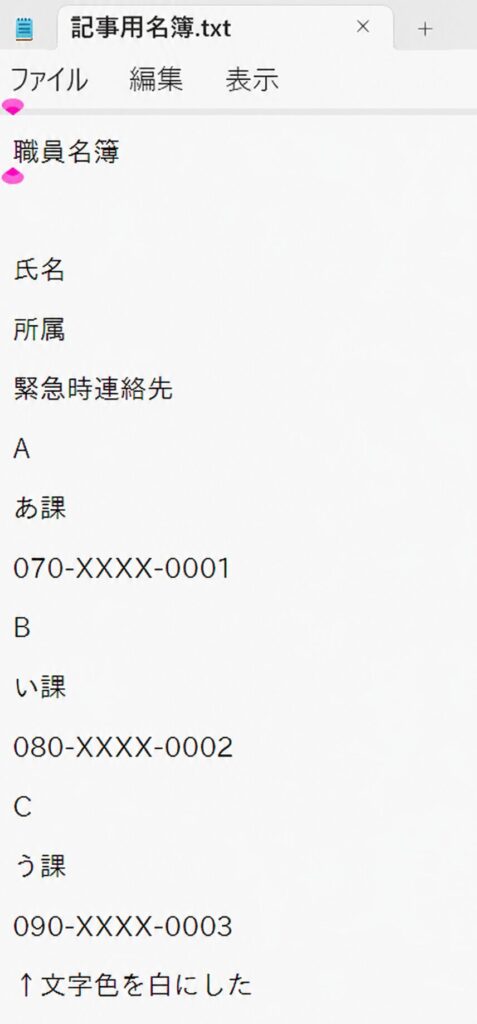
White text is not redaction. If you hide names, telephone numbers or identifiers in an Excel workbook by changing the font to white and then export that workbook to PDF, the information may remain as selectable, searchable or extractable text. Our original hands-on test demonstrated exactly this: a telephone number that was invisible on the page still appeared when the resulting PDF was converted to a text file.
This English article adapts our Japanese-language practical test using a fictional staff contact list. No real employee identity or telephone number is disclosed in the example. We also cross-check Adobe’s published PDF sanitization guidance. Reviewed November 8, 2026.
The mistake: hide a cell by changing font color
Imagine preparing a staff list for an external partner. The source Excel table contains names, department names and emergency telephone numbers. The recipient needs only the first two columns. Instead of removing the phone numbers, the sender changes their text color to white so the cells look blank and exports the sheet to PDF.
The PDF appears to have no phone numbers, but visual concealment does not necessarily remove text from the PDF structure. If the number remains represented as a text object, it may be selected, copied, searched, exported or extracted by automated tools.
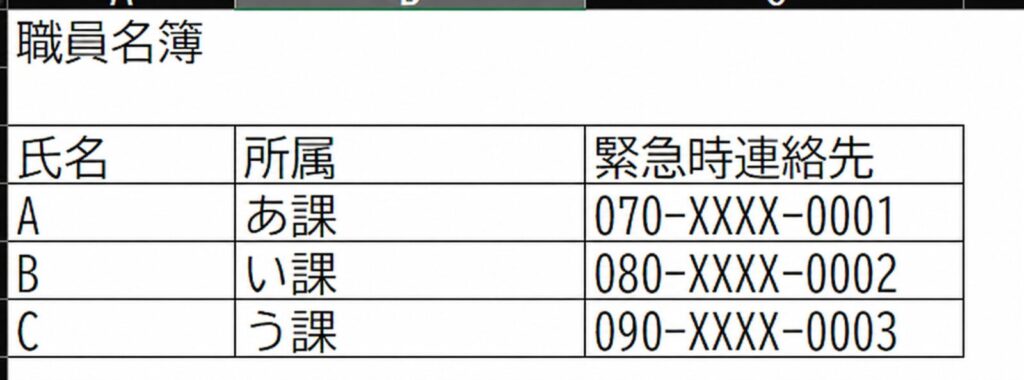
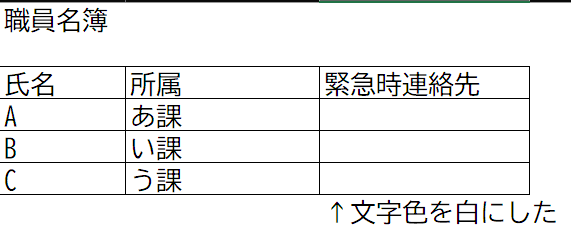
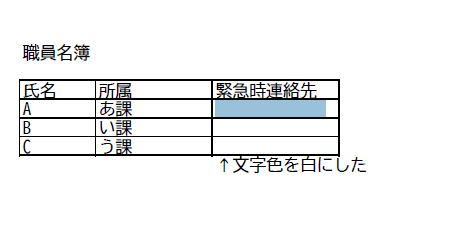
Test result: the hidden telephone number remained extractable
In our test, the numbers were still present after Excel-to-PDF conversion. Using PDF text extraction revealed data that the normal page view had concealed. This occurs because PDF may store the characters, drawing positions and visual properties separately: an invisible-looking white glyph can remain an ordinary text object.
Why the PDF still contains invisible data
An Excel file stores cell values separately from their formatting. Setting a font color to match the background changes presentation, not data. Exporting to PDF usually paints the document for display, but that process may preserve text objects for search and selection. Covering text with a white box, black rectangle, drawing or highlight can similarly leave the original text underneath. Exact results depend on the conversion engine and selected export method—do not assume an image conversion, print driver or other workflow removes all hidden data without testing it.
| Hiding method | Why it is unsafe as redaction |
|---|---|
| White font on white background | The characters may still be in the document and copied or extracted. |
| Black or white rectangle over text | The original underlying text might still be selectable. |
| Comment, annotation or highlight | An annotation can overlay text without removing its underlying content. |
| Hidden rows, columns or sheets | The original workbook still contains the information and some exports/workflows may expose it. |
| Custom number format that visually hides values | Display formatting does not delete the cell’s value. |
| Flattened screenshot alone | It may remove selectable text in that image but is not a complete way to sanitize metadata, hidden pages or other content. |
Safer method: delete unnecessary data before making the PDF
- Make a working copy of the Excel file specifically for the external recipient. Preserve the source workbook securely for internal use.
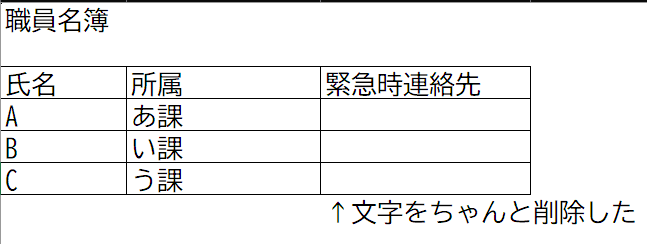
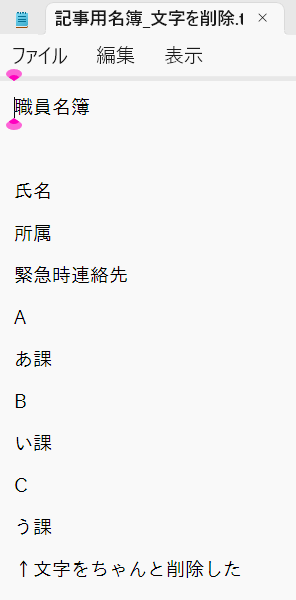
- Remove sensitive columns, rows, worksheets, comments and embedded objects that the recipient must not receive; do not just change font or visibility.
- Use a test copy to confirm that formulas or linked sheets do not reconstruct sensitive values.
- Export the sanitized copy to PDF using the normal, approved workflow.
- Open the resulting PDF and select/copy text from areas where sensitive data used to appear; use the viewer’s search function to check known sample strings.
- If organizational policy requires thorough sanitization, use a dedicated PDF redaction/sanitization tool and inspect hidden metadata, attachments, layers and other document properties.
- Review the final output separately and send only the checked, sanitized PDF.
If you must redact an existing PDF instead
Use a genuine redaction feature, not a white rectangle, highlighter or text-color change. Adobe’s Acrobat Pro sanitization guide describes tools to remove hidden document content, including metadata, comments, hidden layers and sensitive material. Apply and save redactions permanently, then verify the saved file again. Acrobat Reader alone may not provide the full Acrobat Pro redaction/sanitization workflow.
A practical release checklist for finance, HR and school offices
- Confirm the recipient and the minimum fields they actually need.
- Use a new export-only copy rather than modifying a master payroll, contact or HR workbook.
- Check every sheet, table, chart, print range, note, comment, hidden field and embedded object that may enter the output.
- Inspect the resulting PDF for selectable hidden data, document properties, attachments and unexpected pages.
- Use fictional sample identifiers in training materials and test files.
- Require a second reviewer when the document contains particularly sensitive information.
- Record the correct final filename and avoid accidentally attaching the original Excel workbook.
FAQ
Is blacking out PDF text with a rectangle safe?
Not on its own. A graphic overlay may not remove underlying text; use proper redaction that deletes the contents and verify it.
Can I trust a PDF because search does not find the hidden value?
A failed search is one useful check but not a guarantee; PDFs can carry hidden layers, embedded files, metadata or images. A risk-appropriate sanitization workflow is stronger.
Is the problem unique to Excel?
No. The general principle applies to document editors, presentation files and PDFs: altering visibility is not the same as removing confidential information.
What should I do if a PDF containing hidden sensitive data has already been sent?
Treat it as a possible data disclosure. Follow your organization’s incident reporting and containment process; contact the recipient through an appropriate channel, assess the actual content and access scope, and determine any notification duties with privacy/legal staff. Avoid assuming the data was unreadable because it was not visually displayed.
Sources and original experiment
- Adobe: sanitize PDFs and remove hidden content
- Original Japanese Excel-to-PDF experiment with sample screenshots
Sample data in screenshots is fictitious. English adaptation reviewed November 8, 2026. The article documents the original export method’s observed behavior; different PDF conversion paths need separate verification. Visual concealment should never be treated as a security control.