



Acrobat Reader slow to open PDFs? On one Windows workstation in our office, opening the same PDF took approximately three seconds before we changed two optional settings, and less than one second afterward. We disabled Acrobat’s generative AI features and changed its read-aloud preferences while leaving its security protections enabled.
This is a genuine observation from the original Japanese test, but it is not a controlled benchmark or proof that disabling AI alone delivers a particular percentage improvement. We changed both settings before rechecking, so the individual contribution of each cannot be isolated. English article checked November 8, 2026.
What we tested
| Test condition | Observed result |
|---|---|
| Application | Windows Adobe Acrobat Reader Continuous Release 2026.001.21691 (64-bit) |
| Before changes | Around 3 seconds from double-click to PDF display |
| After changes | Under 1 second in the same test environment |
| Changes made | Turned off generative AI features and set read-aloud preference not to read the document |
| Security modes | Protected Mode and Enhanced Security left enabled |
| Measurement quality | Informal test on one workstation, not a multi-run lab benchmark |
If you rely on Acrobat’s AI Assistant or screen reading functions for accessibility, do not disable them solely to pursue speed. The correct configuration depends on your needs.
Step 1: locate Acrobat Reader Preferences
- Close open PDFs if needed to avoid interrupting your work.
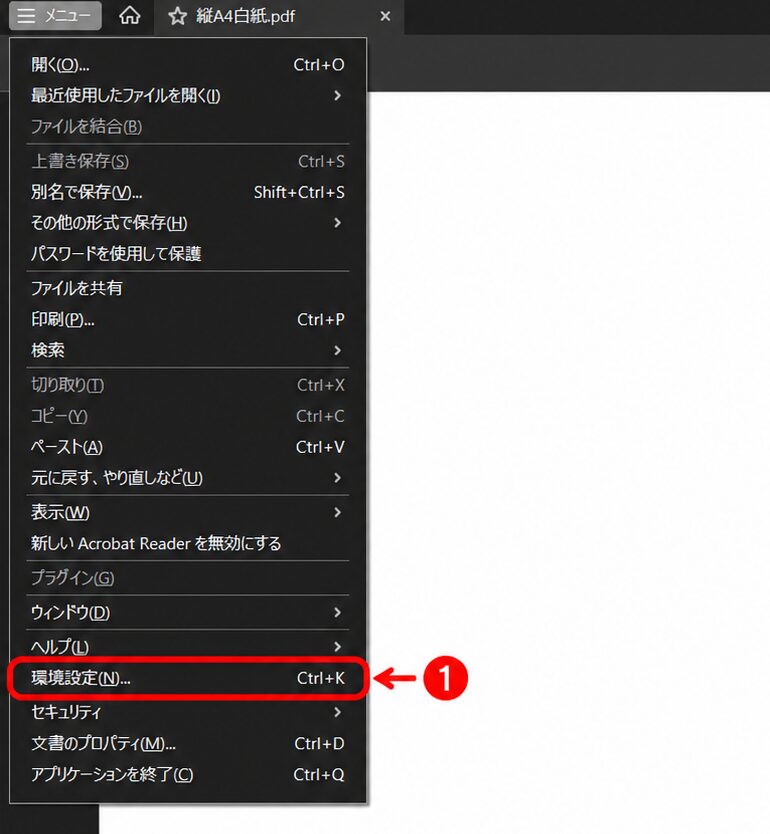
- Open Adobe Acrobat Reader and choose Menu → Preferences on Windows. In some layouts, the older Edit → Preferences entry may be used.
- Look in the left preferences panel for Generative AI and Reading, or similarly named sections.
- Make a note of your current options so you can restore them later if required.
Step 2: turn off generative AI features if unused
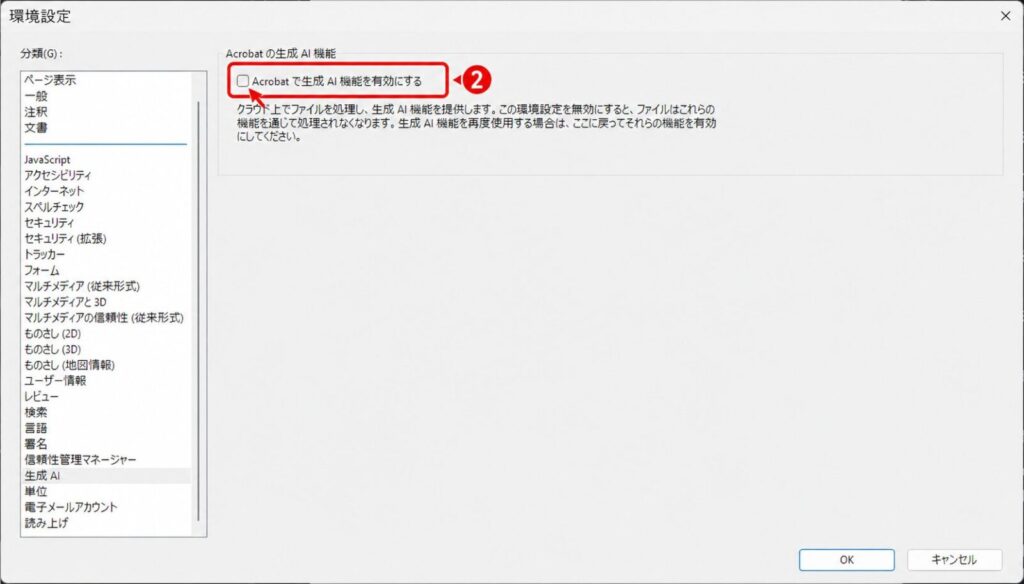
Adobe documents a user setting for opting out of Acrobat generative AI. Navigate to Preferences → Generative AI and clear the option to enable generative AI features. Confirm the change and reopen a normal PDF. The available panels vary by Acrobat/Reader plan, region and release. Adobe’s official instructions describe the same principle.
Step 3: review the Read Out Loud / Reading setting
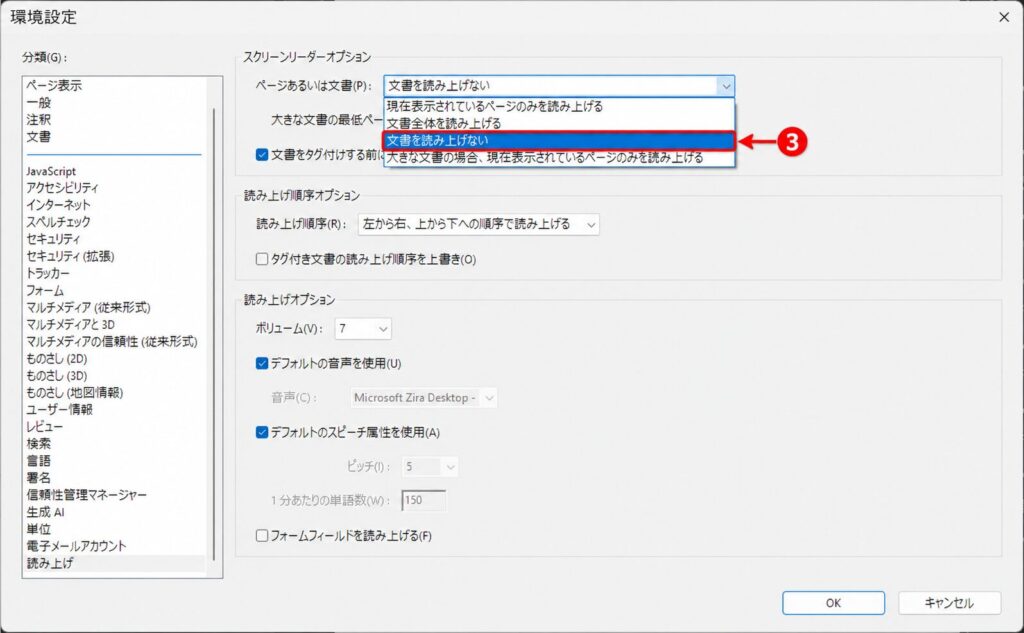
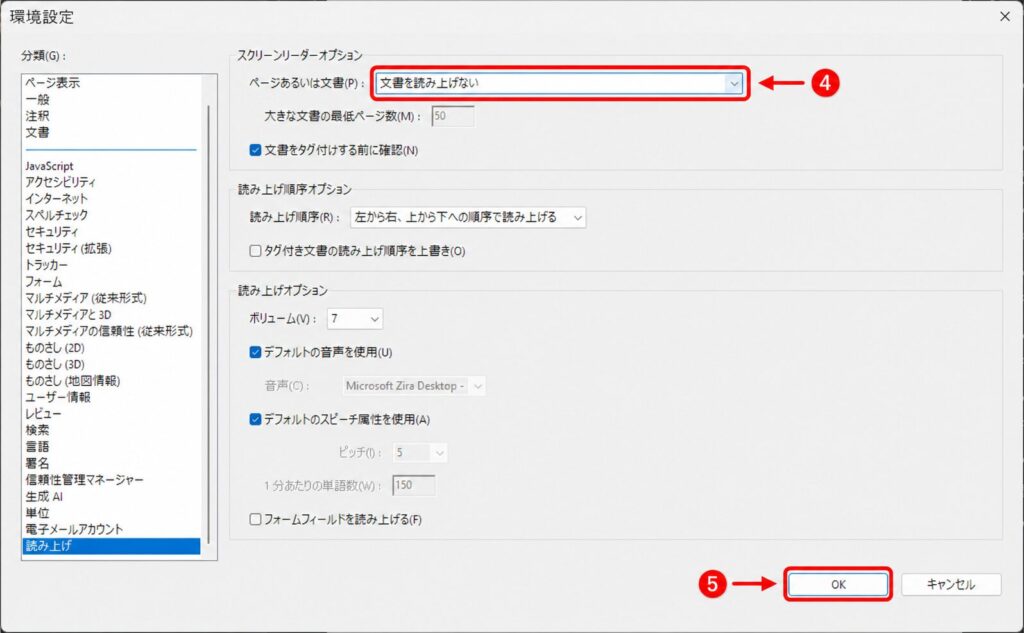
In the Reading preferences, check whether Acrobat is configured to analyze or read documents automatically. Our test changed the option so the document was not read aloud. Your version may present different wording or accessibility options. This can influence assistive workflows, so avoid changing it on a user’s PC without understanding how they read PDFs.
Step 4: measure the result safely
- Use the same local PDF for before-and-after checks, preferably one that contains no confidential information.
- Close the application between runs and record the elapsed time from opening the file to its usable display.
- Repeat several times, ideally allowing for warm and cold application starts, and avoid drawing conclusions from a single trial.
- Check CPU, disk activity and background processes if there is no improvement.
- Verify search, printing, protected viewing and accessible reading still work as the user requires.
Our published result is “around three seconds before; less than one second afterward” under that workstation’s conditions. It should not be represented as an official Adobe performance guarantee. Also, an application may appear faster because of caching or other environmental changes. This is why the two settings should not be overcredited.
Why might reading or AI options affect startup?
Generative AI features can add application-level interface and background work, while reading and accessibility functions may examine document structure. The exact performance impact depends on the PDF and software build. We did not profile Acrobat internals, so we cannot establish which component caused the observed delay. The practical insight is to disable only unused optional features and test whether your workflow improves.
What NOT to switch off for speed
- Do not disable Protected Mode simply because PDF files open slowly.
- Do not turn off Enhanced Security or antivirus scanning without an expert risk assessment.
- Do not install unknown “PDF optimizer” utilities from ads or unofficial download sites.
- Do not remove accessibility features required by the user or an organization.
- Do not claim a specific speed benefit unless you measured it under repeatable conditions.
If Acrobat Reader remains slow
| Symptom | Next safe check |
|---|---|
| Only one huge/scanned PDF is slow | Test a small simple local PDF; investigate file complexity or document corruption. |
| All PDFs are slow | Confirm Reader build and security updates; inspect CPU/RAM/SSD load and Reader Repair options. |
| Delay occurs only on a network drive | Compare a local copy; investigate share/network latency and security scanning. |
| Preferences are not visible | Check product edition, managed policies, app version and Adobe’s current documentation. |
| Accessibility functions no longer work as expected | Restore the previous Reading preference and validate assistive technology. |
| No improvement after changes | Restore any optional settings you need; investigate Reader extensions, shell context and external dependencies. |
FAQ
Will disabling generative AI prevent me from opening PDFs?
No. Generative AI is an optional layer separate from the core PDF viewer functionality.
Should all organizations disable read-aloud features?
No. This can disrupt accessibility. Make the decision with the actual user’s workflow and assistive technology requirements in mind.
Does Adobe confirm a threefold speed improvement?
No. The improvement was observed on our own workstation after two settings changed. It is not an Adobe claim or a controlled lab result.
Sources and experiment notes
- Adobe: turn off generative AI features in Acrobat
- Original Japanese experiment with actual preference screenshots
Original real-world test: Windows Acrobat Reader 2026.001.21691, one workstation. English adaptation checked November 8, 2026. No new controlled speed measurement was performed.