



Moving Microsoft Authenticator to a new iPhone is not the same as restoring every sign-in credential. Our hands-on iPhone-to-iPhone migration found that a personal Microsoft account could be restored through the supported backup process, but a work or school Microsoft 365 account required new-device re-registration. Microsoft’s official support documentation explicitly distinguishes these account categories.
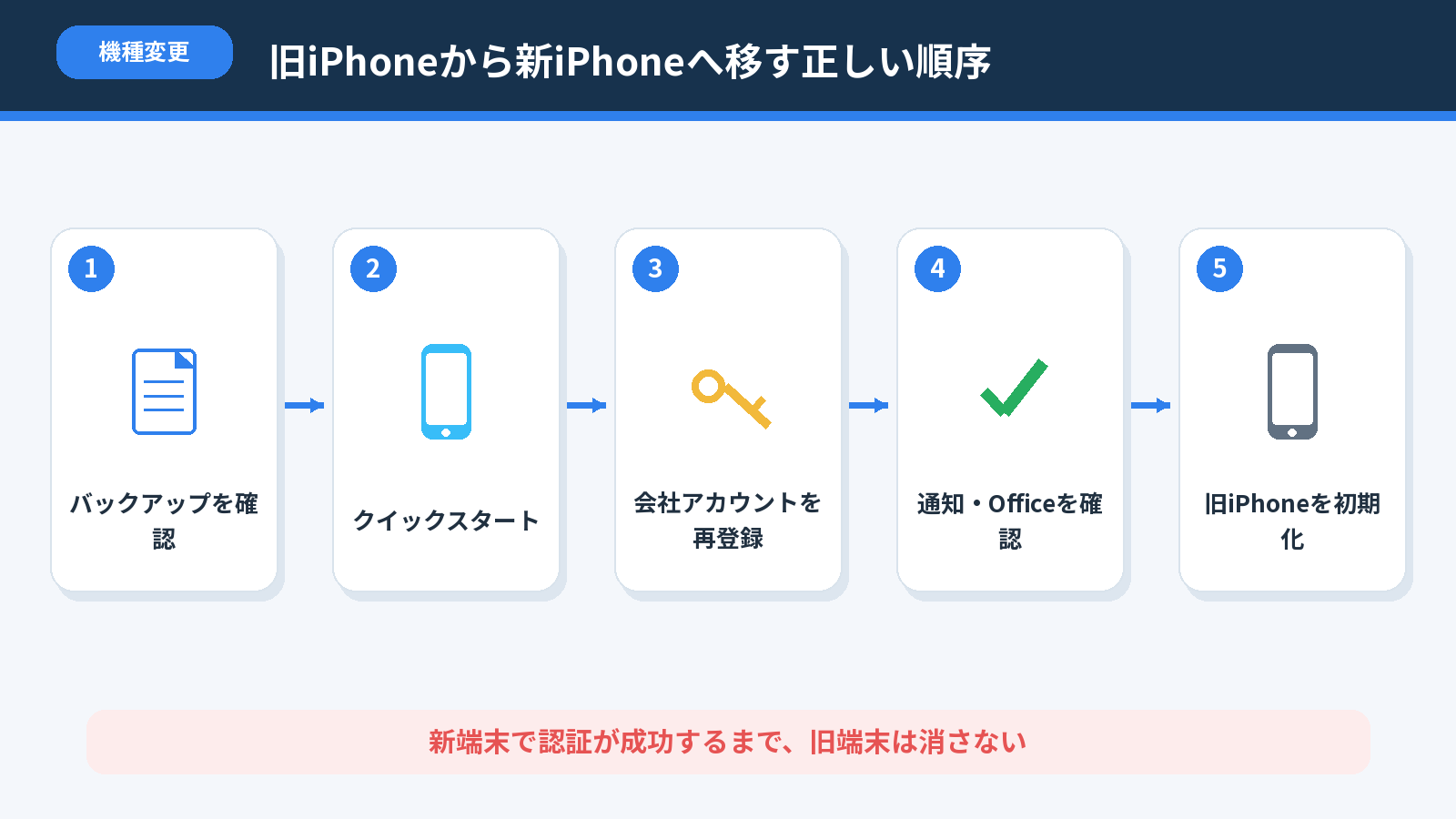
The most important instruction is simple: do not erase, return or trade in the old iPhone until the new iPhone successfully receives and approves the required Microsoft 365 authentication prompts. This English guide adapts our original Japanese experience and Microsoft support materials, reviewed November 8, 2026.
What does and does not move to a new iPhone?
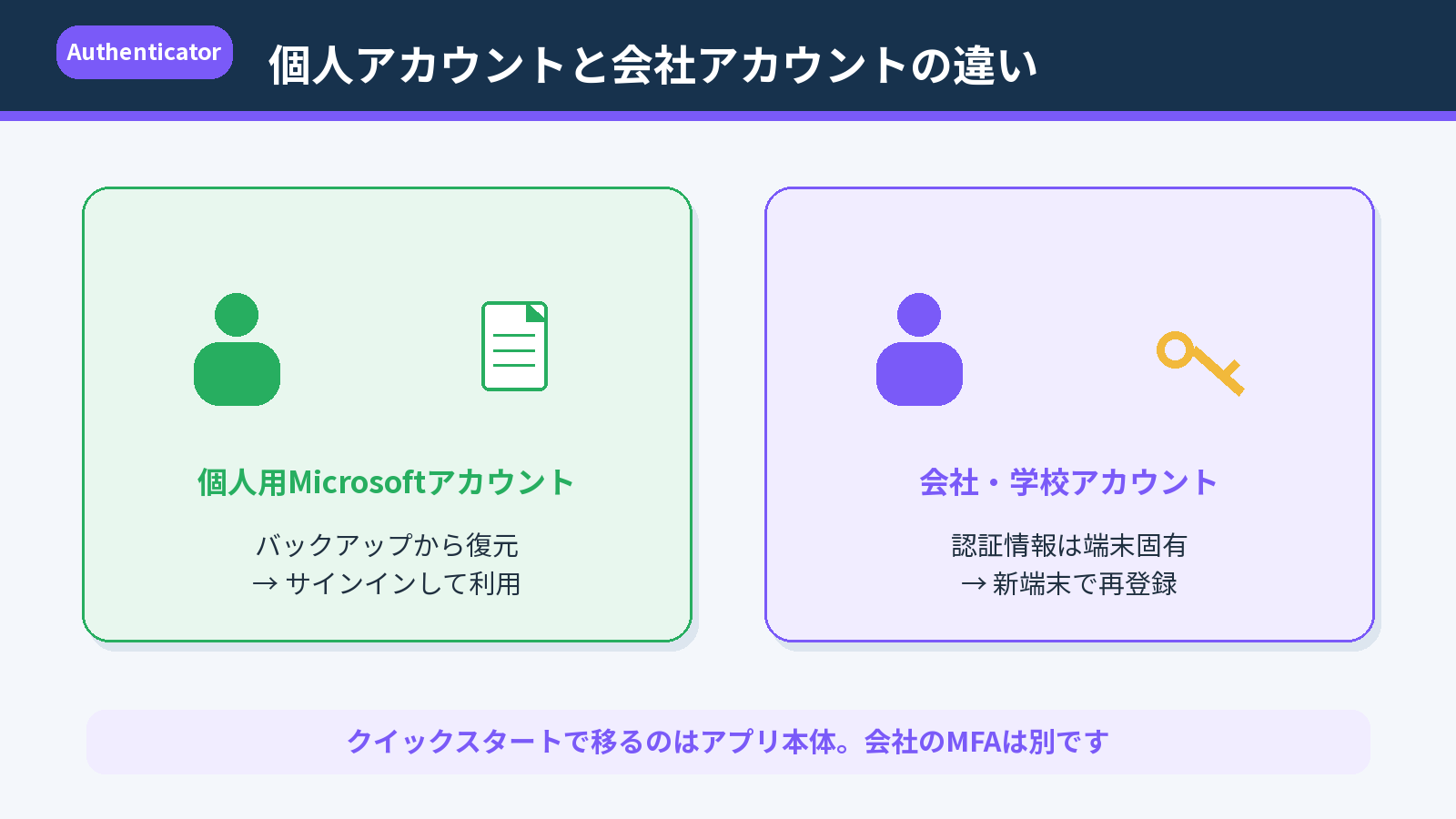
| Account type | What may restore | What must still be checked |
|---|---|---|
| Personal Microsoft account with eligible OTP codes | One-time password codes can be restored via the supported backup process | Re-authenticate where prompted; passwordless credentials may need to be registered again |
| Work or school Microsoft account | The account name can be restored | Authenticator credentials are not backed up: sign in and register on the new phone |
| Third-party OTP account | Eligible 30-second OTP codes may be restored | Check each website individually after recovery |
| Passwordless sign-in | Not automatically transferred as a live passwordless credential | Perform the service’s approved registration process |
| iPhone to Android | Authenticator backups are not portable across device types | Plan individual account migrations rather than relying on iOS backup |
Before changing phones: the preflight checklist
- Keep the old phone powered on, unlocked and connected to a network.
- Make sure you still know the account credentials and have access to any organization-approved recovery method.
- Check iCloud Drive, iCloud Keychain and iCloud Backup as required by the current Microsoft Authenticator recovery instructions.
- Confirm that Authenticator is updated and the same device ecosystem is being used for backup/restore.
- Do not depend on a single MFA method for a business-critical or administrator account; organization policy may require additional registered methods.
- For managed work accounts, ask IT whether security information changes are restricted, or whether a Temporary Access Pass or identity verification will be required.
Step-by-step: move Authenticator from iPhone to iPhone
- On the old iPhone, confirm the Microsoft Authenticator backup prerequisites and the accounts you need to preserve.
- Use Apple’s supported iPhone transfer/recovery flow to set up the new iPhone, or install Authenticator fresh and use the available recovery flow.
- Open Microsoft Authenticator on the new phone and restore supported personal/third-party OTP entries when prompted.
- For each work/school entry, sign in again and register the new device. Use the current Microsoft 365 security-info portal or organization-approved registration experience.
- Approve the registration request with the old phone if your organization permits and it remains available, or use another pre-registered method.
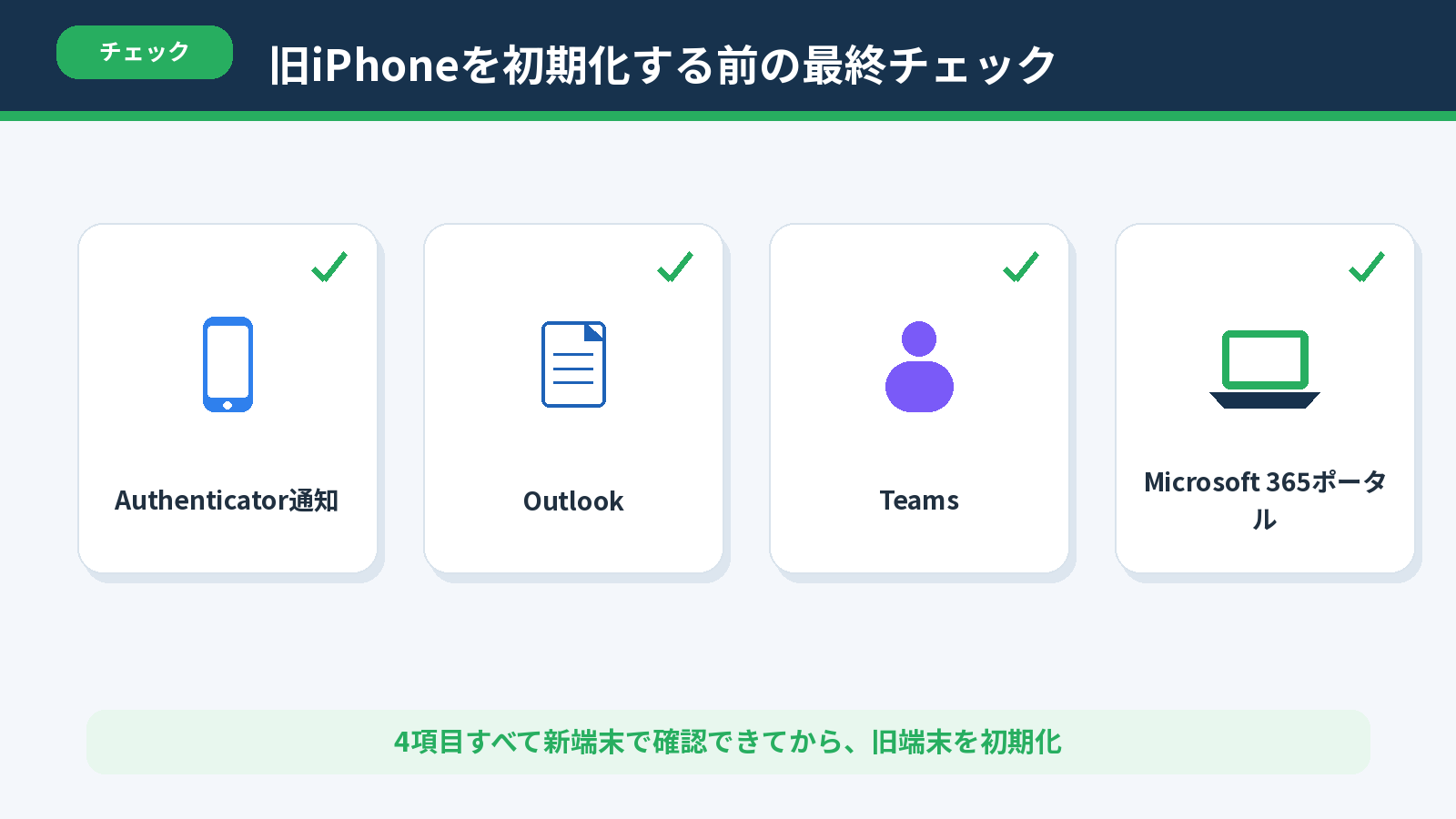
- On the new phone, test a real sign-in to Microsoft 365, Outlook and Teams and verify that MFA challenges reach the expected device.
- Only after all required accounts pass their sign-in tests should you consider wiping, returning or selling the old phone.
A work/school account may show its name but still be unusable
Microsoft explains that its backup does not store work/school authentication credentials. After restoring, you may see an account entry, but that does not mean push approval, passwordless sign-in or account-bound credential material is ready. Treat the entry as a reminder to complete registration, not as proof of a successful transfer.
In our original migration, the administrator approved the new-device setup from the old iPhone and completed the work account’s re-registration in roughly five minutes. That duration is a personal observation and is not guaranteed; tenant security policies, registration restrictions and device compliance can make the process different.
Where to re-register Microsoft 365 authentication
- Sign in to My Sign-Ins → Security info with the work/school account when allowed by your organization.
- Choose to add a sign-in method, then select Microsoft Authenticator if available.
- Follow the instructions shown on both the browser and the new iPhone.
- Verify the new method by approving a test or completing the verification step.
- Remove or update the old device registration only when new-device sign-in works and organizational policy permits it.
For accounts managed by Entra ID, administrators can control which methods are permitted and how users register. If the security-info portal is inaccessible, contact IT rather than repeatedly deleting and adding entries.
What if the old phone was already erased or lost?
If the lost device was your only registered MFA method, you may be unable to complete ordinary sign-in without additional support. A work/school account owner should contact the organization’s Entra ID administrator or helpdesk to verify their identity and obtain an approved reset or temporary access method. A personal Microsoft account has different recovery procedures and may be subject to additional account-recovery checks.
For IT administrators: reduce phone-migration lockouts
- Maintain an authenticated account recovery/helpdesk verification procedure and prevent social engineering of MFA resets.
- Provide an employee checklist before planned phone replacement or MDM enrollment.
- Encourage additional phishing-resistant methods such as passkeys or security keys where supported by policy.
- Teach users that restoring account names is not equivalent to restoring work credentials.
- Prepare emergency access accounts protected with suitable methods so an entire IT team is not locked out by one phone failure.
- Review newly registered authentication methods and remove lost or retired devices according to policy.
Common questions
Does Apple Quick Start transfer Microsoft Authenticator MFA automatically?
Do not assume it does. Recovery behavior depends on the account type and Authenticator’s own backup/registration process. Microsoft states work/school credentials must be re-registered.
My work account is visible in the new app. Why can’t I approve sign-ins?
The restored item may represent the account name rather than the previous device’s credential. Register the work account again on the new phone.
Can I erase the old iPhone after iCloud recovery is complete?
Not until you’ve tested the accounts you need, particularly managed work/school sign-ins. iCloud recovery alone is not a sufficient MFA validation.
Do I need an IT administrator to add the new phone?
Often you can register it yourself if a working old MFA method remains available. If you cannot authenticate, a tenant administrator or approved recovery process may be necessary.
Sources and testing context
- Microsoft Support: restore account credentials in Authenticator
- Microsoft work/school security information portal
- Original Japanese iPhone-to-iPhone migration report
- Related guide: Microsoft 365 MFA lockout and administrative recovery
English translation/adaptation reviewed November 8, 2026. Original first-hand migration involved an iPhone-to-iPhone transfer and a business Microsoft 365 account. Menu displays and tenant policies may differ; no new device migration was performed for this translation.