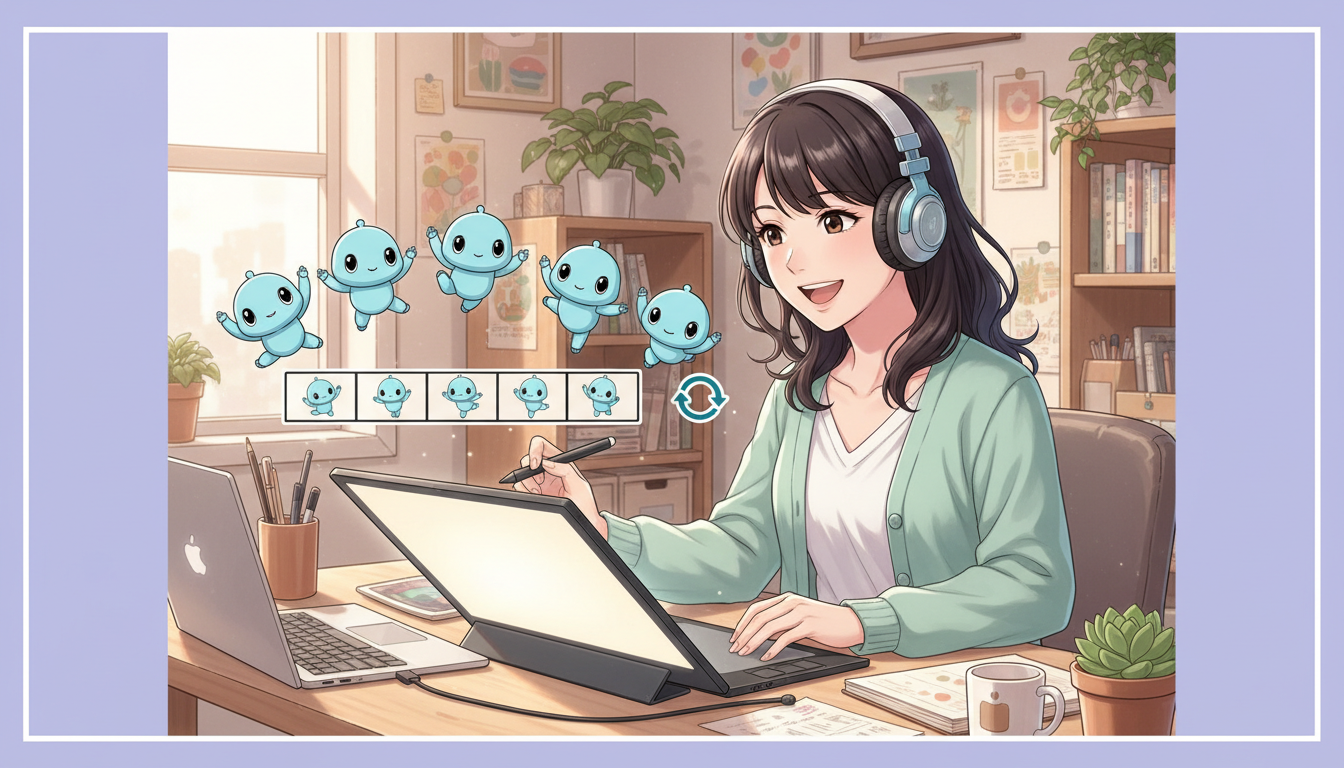


Want to turn a character into a looping GIF, animate a mascot for social media, or add a small moving illustration to your WordPress site? On November 4, 2026, OpenAI introduced ChatGPT Images 2.6, announcing image generation that is 50% faster than before along with the ability to create animated GIFs from instructions or static images.
This guide walks through the workflow and includes a real animated GIF made for our original Japanese article. We inspected its file format, frame count and size. We also explain the current restrictions, common failures and how to use GIFs without harming blog readability.
Checked November 7, 2026. The GIF feature is rolling out, so its availability may differ among accounts and devices even though Images 2.6 is globally available. This is an English adaptation of our original Japanese-language tutorial.
Quick answers: Can ChatGPT create an animated GIF?
| Question | Answer as of November 7, 2026 |
|---|---|
| Can ChatGPT generate GIFs? | Yes. Describe a loop and the desired motion; a static image can also be used as the starting point. |
| Is it available on Free? | ChatGPT Images is available on all plans, but GIF creation is being rolled out and image limits still vary. |
| Is it really 50% faster? | That is OpenAI’s announced performance improvement, not an independent guarantee for every request. |
| Can I edit a GIF? | You can request changes to GIFs generated by ChatGPT and adjust playback speed. Uploaded animated GIFs cannot currently be edited in ChatGPT. |
| What about WordPress? | Use the actual .gif file, check animation after upload and watch file size and accessibility. |
Live example: a six-frame robot waving GIF
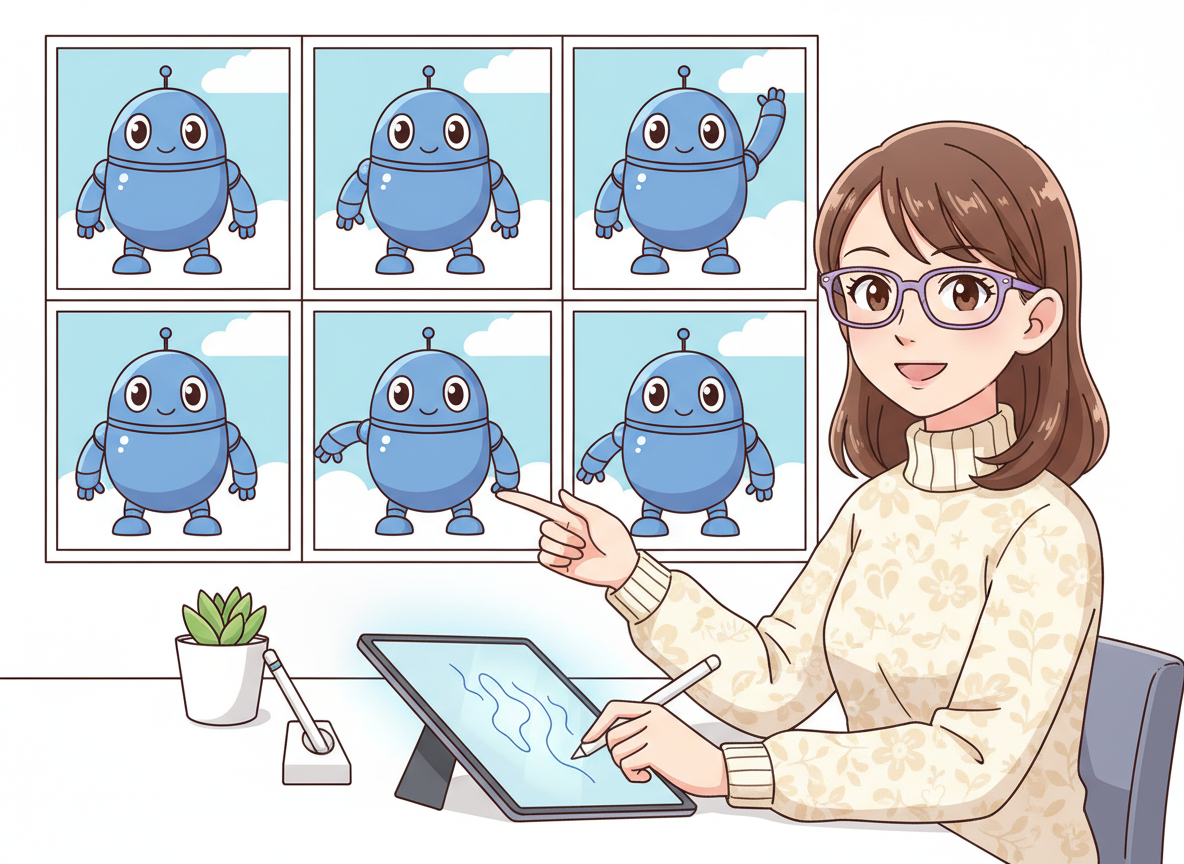
For our Japanese tutorial, we created an original little blue robot waving beside a laptop. The result was an animated GIF file rather than a static montage of frames. The image below is the actual test file from that article, reused here for English-language readers.
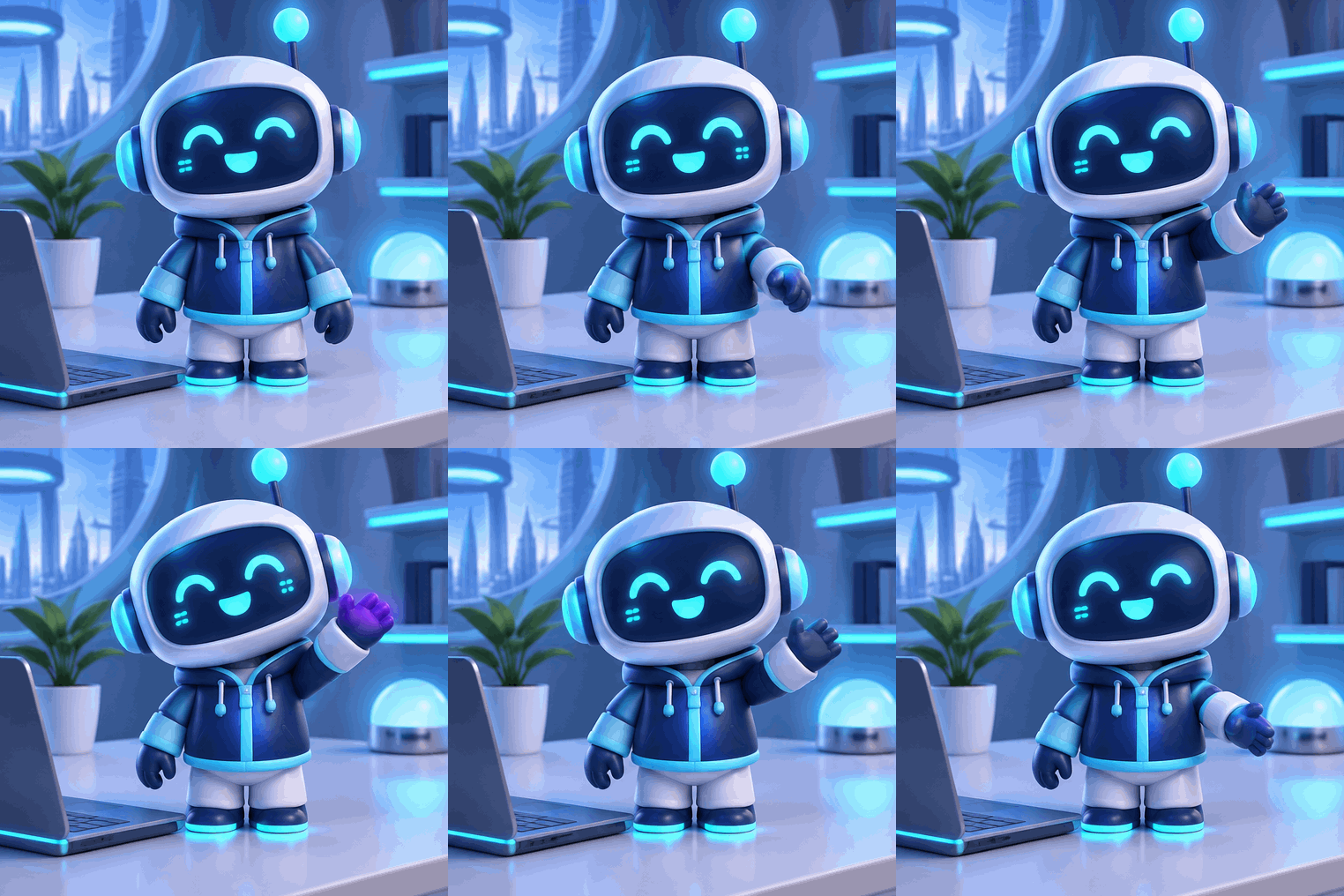
| Property | Observed result |
|---|---|
| Format | GIF (image/gif) |
| Dimensions | 508 × 508 pixels |
| Frame count | 6 |
| Duration | 1.2 seconds per loop; approximately 200 ms per frame |
| File size | 551,052 bytes (approximately 538 KiB) |
| Motion | Robot raises, waves and lowers its arm in a short loop |
What this test confirms: a valid GIF file with six frames was produced and played as a loop. We did not independently benchmark a previous model under matching conditions to verify the 50% speed claim, nor test every per-frame editing control. We distinguish the vendor’s stated capabilities from our own observed output.
How to create a GIF in ChatGPT: step by step
Step 1: open ChatGPT and describe one clear motion
Open a new conversation in ChatGPT on the web or mobile app. You can ask ChatGPT to create an image or use an Images entry point where available. The most important detail is to ask for a looping animated GIF, not merely a picture of the subject.
For a reliable first test, select a simple action such as waving, blinking, nodding or a paper boat gently rocking. Keep the camera angle, background, clothing and character design consistent between frames.
Step 2: copy and customize this English prompt
Use the following example and replace the robot with your own character, product or mascot:
Create a short seamless looping animated GIF of a cute original small blue robot standing beside a laptop on a desk.
- The robot slowly raises its right arm, waves, then lowers it.
- Use exactly 6 frames, with about 200 milliseconds per frame.
- Keep the robot's face, appearance, outfit, background and camera position identical across all frames.
- Only the robot's arm should move noticeably.
- Bright, polished 3D cartoon style; no text, watermark or logo.
- Keep each frame the same size.
- Export the finished result as a real animated GIF file, not a single static sprite sheet.
A frame is one still image in an animation. Displaying six frames at about 200 ms each creates a 1.2-second sequence. Repeating it can create a small, friendly motion loop. For a smoother effect, specify enough intermediate positions and tell ChatGPT to make the ending flow naturally back into the first frame.
Step 3: preview, save and refine the animation
- Open the result after image generation finishes.
- Confirm that it moves as intended, the character remains recognizable, and the background does not jump between frames.
- Save or share the GIF from the image viewer. OpenAI’s documentation also describes a playback-speed control.
- If necessary, ask for adjustments: “Keep the background fixed,” “Make the wave smaller,” or “Make the last frame transition smoothly into the first.”
- Check that the file you saved is an animated
.gif, not a static PNG or preview thumbnail.
Be careful about a limitation in OpenAI’s documentation: ChatGPT can modify GIFs it generated, but cannot currently edit an existing animated GIF that you upload. Recreate the animation from a source image or original prompt if needed, or use a dedicated GIF editor for an uploaded file.
GIF generation not working? Troubleshooting
| Symptom | What to try |
|---|---|
| ChatGPT returns a still image | Explicitly request a looping animated GIF file, describe the movement and keep it simple. |
| No GIF creation option appears | The feature is rolling out. Check current product availability instead of assuming a paid upgrade will solve it. |
| Character changes between frames | Specify the same subject, background, clothes, lighting and camera; limit moving parts. |
| Downloaded result does not animate | Verify the actual file extension and MIME type. The downloaded file may be a still preview rather than the GIF. |
| Uploaded GIF cannot be edited | This is a documented limitation; edit a ChatGPT-generated GIF or recreate the animation. |
| The loop visibly jumps | Use a less dramatic movement and ask for a first/last-frame transition that is visually close. |
What does ‘50% faster image generation’ actually mean?
OpenAI announced that Images 2.6 generates images 50% faster than before. That statement is about the model’s reported performance. Actual completion time depends on prompt complexity, chosen output quality, GIF requirements, service load and other factors. A request that previously took one minute is not guaranteed to finish in exactly 30 seconds.
Flare vs. Sunburst: developer-facing model choices
| Model | Purpose |
|---|---|
| GPT-Image-2.6 Flare | Speed-oriented API option. OpenAI cites image generation in as little as six seconds at low quality, not as a universal latency guarantee. |
| GPT-Image-2.6 Sunburst | Quality-oriented API option with improved fine detail and edit consistency, including medium/high quality settings. |
These names primarily matter to API developers. Ordinary ChatGPT users do not necessarily have to choose between them manually to create a GIF.
Other notable Images 2.6 changes
Better consistency across image edits
OpenAI says the updated models preserve characters, clothing, products and brand details more consistently across rounds of edits. This is valuable for storyboards and recurring mascots, though perfect consistency is not guaranteed.
Saved reference images
A reference image can be named and reused in future chats with an @name mention, reducing repeated uploads. Consider privacy and sharing boundaries before storing personal photos or confidential material as reusable references.
More control through the API
For developers, the release adds or expands options such as SVG output, image-markup-guided editing and a configurable complexity parameter. Not every API setting has an identical button in every ChatGPT interface.
Using animated GIFs on WordPress without slowing your site
A moving image should demonstrate something the reader cannot understand as easily from a still image. Excessive animation can distract from reading, consume mobile data and slow page loading. For practical tutorials, a short GIF showing one specific motion is usually sufficient.
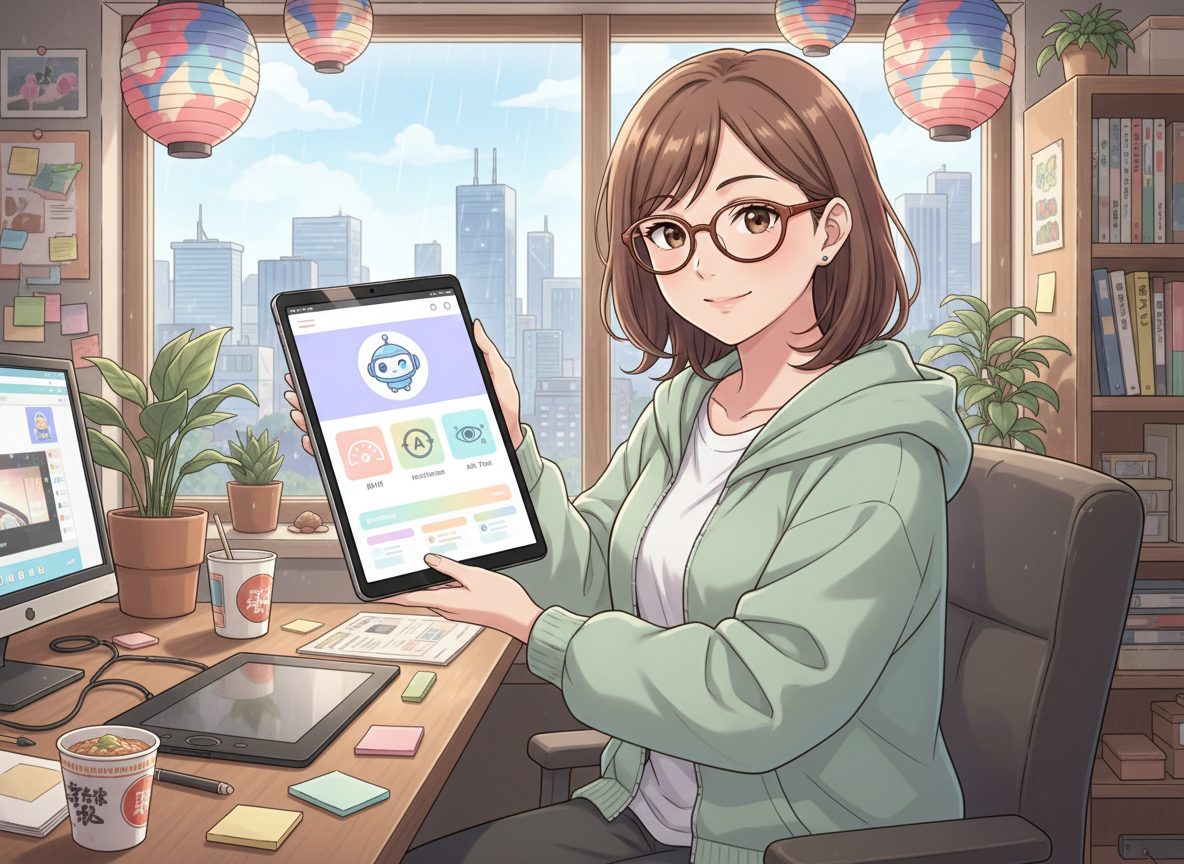
- Use the correct image file: WordPress-generated thumbnails can sometimes display only a still frame. Check the full-size GIF or the actual file URL.
- Write descriptive alt text: describe the action shown, such as “A blue robot waves beside a laptop.”
- Keep the animation brief: large, complex GIFs can be far heavier than equivalent video clips.
- Avoid intense flashes or unavoidable motion: respect readers who are sensitive to animation.
- Inspect mobile rendering: ensure the GIF fits the content width and does not obscure copy or ads.
- Protect copyrights and privacy: do not upload private documents or third-party images without permission.
GIF and MP4 are different formats. GIF is convenient for simple loops, while video formats may be more efficient for longer or richer animation. Choose based on the purpose, accessibility and file size—not because motion always attracts more views.
FAQ
Can Free users create GIFs?
Images 2.6 is broadly available across ChatGPT plans, including Free, but GIF functionality is rolling out and generation limits may apply. Check the feature in your account.
Can I upload an existing GIF to edit it?
Not currently as an animated GIF editing workflow in ChatGPT, according to OpenAI’s help documentation. The restriction differs from modifying a GIF created within ChatGPT.
Can ChatGPT animate a single photograph?
OpenAI documents the ability to upload a static image and request an animation. Review output carefully: motion, identity, background and physical consistency may not be perfect.
Does 50% faster mean every GIF takes half the time?
No. That is OpenAI’s announced model-level improvement, not a guarantee for each animated output.
Conclusion and official sources
ChatGPT Images 2.6 expands image creation beyond still pictures: users can request animated GIF loops and refine generated results. To start, try a six-frame wave, keep the subject consistent and save the result as a real GIF. For blogs, use animation where it teaches something useful rather than as decoration.
- OpenAI: Introducing Images 2.6 (November 4, 2026)
- OpenAI Help Center: Images in ChatGPT
- OpenAI product release notes
- Read the original Japanese article and example
English adaptation updated November 7, 2026. The included waving-robot GIF is an existing demonstration produced for this site. We did not run controlled speed benchmarks or independently verify every editing option across plans.