


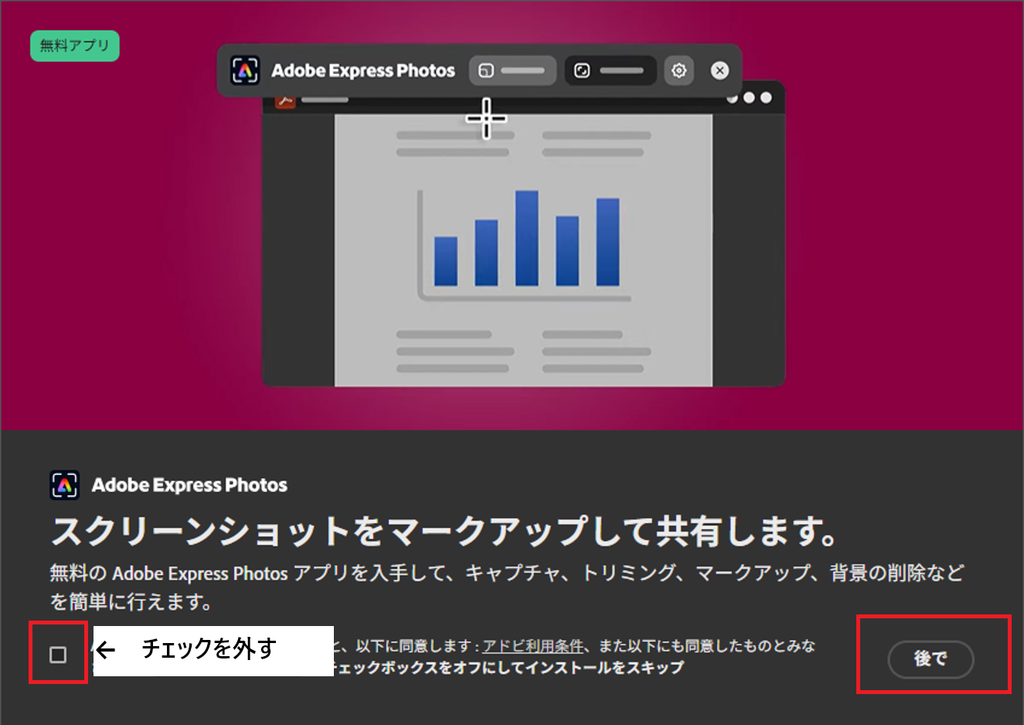
If Adobe Acrobat Reader suddenly offers to install Adobe Express Photos, the extra app is not required to open PDF files. Home users can generally clear the installation checkbox and dismiss the offer. IT administrators who need to prevent the prompt across managed Windows PCs can deploy Adobe’s documented machine-level registry policy with Group Policy Preferences (GPP).
This article adapts an existing Japanese-language guide with actual GPO and registry screenshots. The screenshots show a Japanese Windows environment; English menu names below follow Microsoft’s naming. Policy behavior is based on Adobe and Microsoft documentation rather than a newly performed English-language workstation test. Reviewed November 8, 2026.
Quick answer: skip, block, or uninstall?
| Situation | Recommended action |
|---|---|
| A one-time optional installation offer appears in Reader | Uncheck the option to install Express Photos; choose the option to continue or dismiss, as available. |
| Multiple managed computers must not receive the offer | Deploy Adobe’s documented HKLM policy using GPP, Intune or another device-management platform. |
| Express Photos is already installed | Uninstall it with Windows Installed apps or enterprise software management; the registry value does not remove it. |
| The screenshot shortcut or default capture app has changed | Review Windows capture shortcut assignments and the Express Photos configuration; changing the offer policy may not undo shortcut changes. |
| Updates must continue normally | Keep Acrobat/Reader security updates enabled. The opt-out is a separate setting. |
What is Adobe Express Photos?
Adobe Express Photos is a separate Windows application for capturing, editing and sharing images. It can include screenshots, cropping, annotations and other photo-editing workflows. Acrobat Reader’s job is PDF viewing; seeing an Express Photos prompt does not mean it is a prerequisite for reading PDFs. Reader’s opt-in offer should also not be confused with the automatic deployment flow Adobe describes for certain entitled Acrobat Studio/Express customers. Applicability depends on entitlement, configuration and rollout.
Method 1: dismiss the optional offer in Acrobat Reader
- Open the Reader notification and find the checkbox or option related to installing Adobe Express Photos.
- Clear the installation checkbox if you do not want the app.
- Use the displayed continue, later or dismiss action; exact button text can vary by build and language.
- Confirm Reader can still open PDFs. If the app installed anyway, check Windows Settings → Apps → Installed apps.

Method 2: disable the prompt with Adobe’s registry policy
Adobe’s administrator FAQ documents the following machine-level value. It suppresses relevant Reader installation offers and opts affected Acrobat enterprise devices out of the stated installation path. It does not prevent separate downloads through the Microsoft Store or Creative Cloud, and it does not uninstall existing copies.
| Setting | Required value |
|---|---|
| Hive | HKEY_LOCAL_MACHINE (HKLM) |
| Key | SOFTWARE\Policies\Adobe\Adobe Acrobat\DC\FeatureLockDown |
| Value name | bDisableHarmonyInstallationFeature |
| Type | REG_DWORD |
| Data | 1 (0x00000001) |
Windows Registry Editor Version 5.00

[HKEY_LOCAL_MACHINE\SOFTWARE\Policies\Adobe\Adobe Acrobat\DC\FeatureLockDown]
"bDisableHarmonyInstallationFeature"=dword:00000001
The policy is scoped to the computer, not to one user’s HKCU profile. Prefer controlled deployment through your management platform to editing every workstation manually. Review the Adobe Express Photos administrator FAQ before deployment.
Method 3: deploy the policy with Group Policy Preferences
- On a computer with the Group Policy Management Console, open
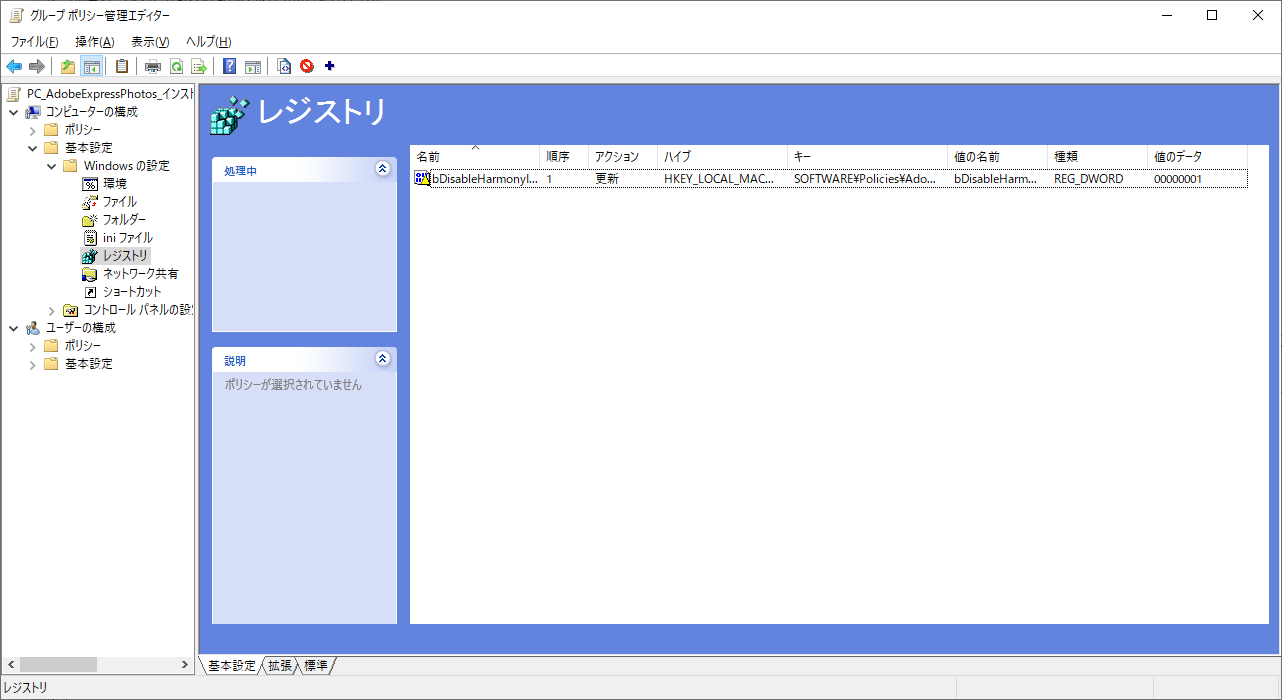
gpmc.msc. Create a pilot GPO linked to the organizational unit containing computer accounts, not just user accounts. - Edit the GPO. Navigate to Computer Configuration → Preferences → Windows Settings → Registry.
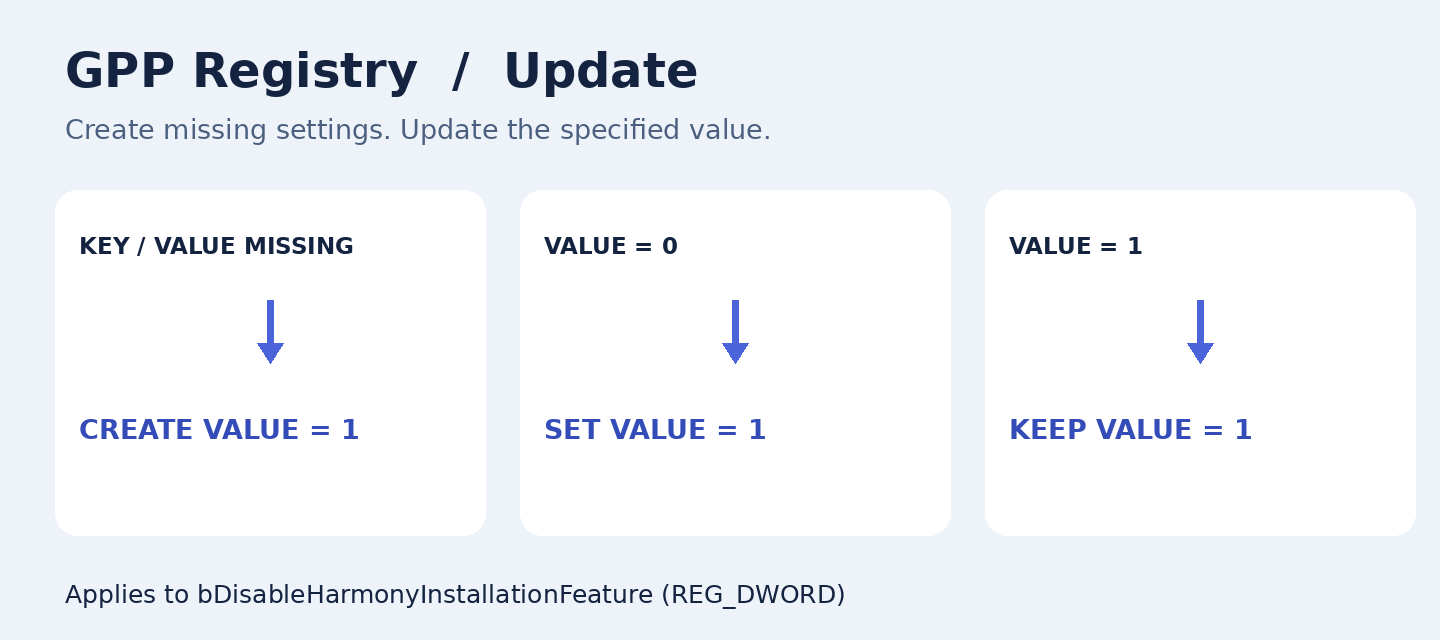
- Create a new Registry Item. Choose Action: Update and Hive: HKEY_LOCAL_MACHINE.
- Enter the key path without the hive name, use the exact value name
bDisableHarmonyInstallationFeature, select REG_DWORD and enter 1. - Save the GPO. Apply it to one or two pilot devices first and confirm the effect before expanding the scope.
What if the Adobe registry key does not exist?
This is a common concern for IT administrators. Under Microsoft’s Group Policy Preferences behavior, an Update registry preference can create the specified key and value when they are absent. You do not need to create the entire Adobe policy tree manually on every PC. Actual policy application may still fail if the device cannot process domain policy or has other permissions/connectivity issues. Distinguish policy creation from successful client processing.
Verify the GPO on a pilot computer
On a managed test device, with appropriate administrator permissions, run:
gpupdate /target:computer /force
gpresult /scope computer /r
reg query "HKLM\SOFTWARE\Policies\Adobe\Adobe Acrobat\DC\FeatureLockDown" /v bDisableHarmonyInstallationFeature
Check that the GPO is listed, and that the registry command returns REG_DWORD and 0x1. A GPO appearing in gpresult does not by itself prove every preference item succeeded; verify the value directly. If the registry policy exists but prompts still appear, restart Reader, check rollout timing, application licensing and whether another installation route is involved.
How do I reverse the setting or troubleshoot failures?
- To reverse the policy, deploy removal of
bDisableHarmonyInstallationFeatureand re-check the resulting effective registry state. Simply unlinking a GPP item does not always remove a registry value it created. - Do not disable Acrobat or Reader automatic security updates as a workaround; the opt-out is separate.
- For domain errors, check GPO scope, security filtering, network/DNS connectivity and Group Policy operational logs.
- If Express Photos has already been installed, remove the existing application through approved software management rather than expecting the DWORD to remove it.
- If screenshots open in the wrong app or a keyboard shortcut changed, troubleshoot the application/shortcut configuration separately.
FAQ
Does this policy block all ways to install Express Photos?
No. Adobe’s scope statement excludes certain stand-alone distribution paths. App-control and software inventory policies must address those separately.
Do I need an Adobe-specific ADMX template to deploy this?
No for this specific method: Group Policy Preferences can distribute the machine registry value directly. A custom ADMX may be useful for centralized administration but is not a prerequisite for this documented DWORD.
Is it safe to keep using Reader without this photo application?
For normal PDF viewing, yes: Express Photos is an optional separate application. Keep Reader itself patched and preserve its security protections.
Official references and translation notes
- Adobe: Express Photos FAQs for administrators
- Microsoft Learn: Group Policy Preferences
- Microsoft Learn: gpupdate
- Microsoft Learn: gpresult
- Original Japanese article with original screenshots
English adaptation prepared November 8, 2026. The policy path and effect were cross-checked against Adobe’s published FAQ. Concept artwork does not represent an authentic Adobe dialog. No additional live enterprise deployment was performed for this English edition.