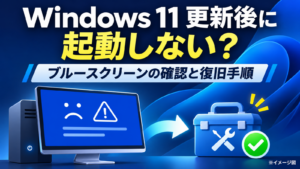



Getting “File system error (65535)” when you try to create a Windows 11 shortcut for an Excel or Word document? First try a different creation method: right-click the actual file → Show more options → Send to → Desktop (create shortcut). On several work PCs discussed in our original support case, this approach successfully created the shortcut when another right-click workflow failed.
The error code does not identify a single root cause. There are also separate reports of code 65535 while creating entirely new folders. The cases should not be conflated, and we cannot attribute every instance to Windows Update, 25H2, OneDrive or an official design change. This English guide adapts our Japanese troubleshooting and workplace observations, checked November 8, 2026.
Fastest workaround: use Send to Desktop
- Open File Explorer and locate the existing Excel, Word or other file you want a shortcut to.
- Right-click that file.
- Choose Show more options if the classic context menu is not already visible.
- Select Send to → Desktop (create shortcut).
- Open the desktop and confirm that the resulting item shows the expected shortcut arrow and opens the original file.
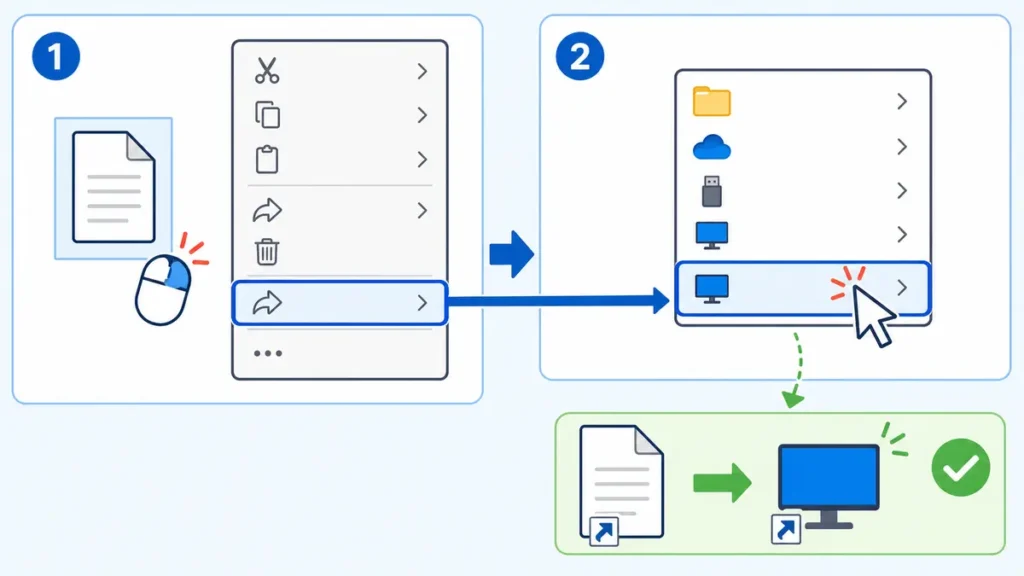
Why can one shortcut creation method work while another fails?
Windows offers multiple commands that sound similar but operate in different contexts. Right-clicking an existing file is not the same as right-clicking blank space on the desktop and choosing New → Shortcut. The latter starts a wizard in which you specify a target. Our original support case involved an error when creating a shortcut from the wrong/affected context-menu path; switching to Send to succeeded. We did not identify the exact internal Windows component that rejected the original action.
| You want to… | Recommended approach |
|---|---|
| Create a desktop shortcut to an existing document | Right-click the original file → Show more options → Send to → Desktop (create shortcut). |
| Create a new shortcut by choosing its target | Right-click blank desktop space → New → Shortcut → Browse, then choose the target. |
| Create a shortcut to Word or Excel itself | Find the application in Start → All, drag its icon to the desktop if supported by the build. |
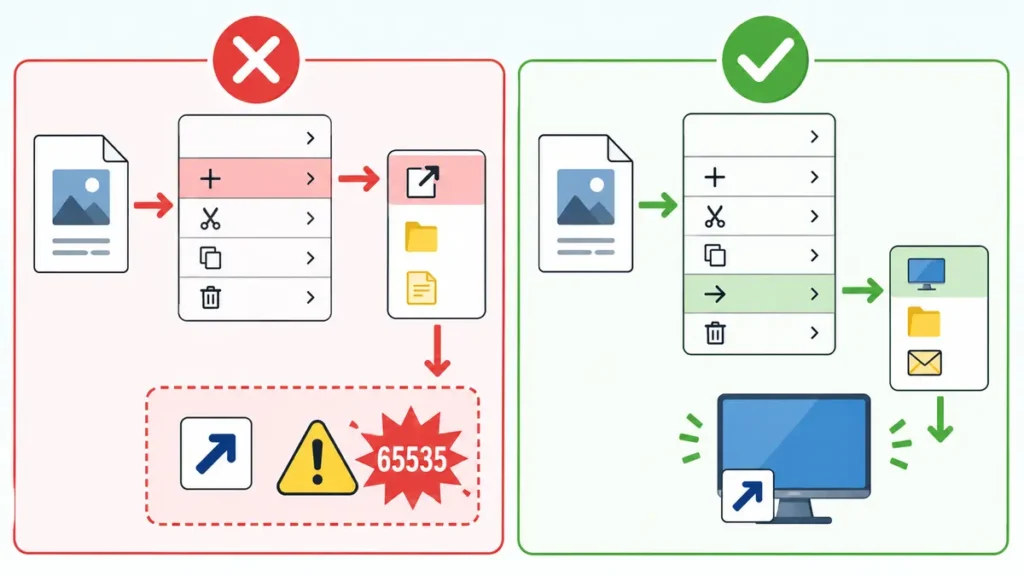
| Move a file shortcut with the mouse | Try holding Alt while dragging a file to the desktop, checking that Windows indicates a link will be created. |
| Diagnose a new-folder error | Treat as a separate file-creation problem; inspect filesystem and permissions. |
Other ways to create a shortcut
Method 2: Alt-drag
With File Explorer and the desktop visible, hold Alt while dragging the source file toward the desktop. Confirm that Windows shows a shortcut/link action before releasing the mouse button; dragging without the modifier may move the real file. Undo immediately if the file moved unexpectedly.
Method 3: use the desktop Shortcut wizard
- Right-click blank desktop space, not the Excel or Word document itself.
- Choose New → Shortcut.
- Browse to the target file or program, then proceed through the wizard.
- Give the shortcut a useful name and test it.
Microsoft publishes general guidance for creating Office and Windows desktop shortcuts. Interface changes may move the context-menu entry behind Show more options. See Microsoft Support: create an Office desktop shortcut.
What we actually observed
A workplace support request reported “File system error (65535)” while trying to create shortcuts on multiple PCs. The Send to Desktop workflow created them successfully. This suggests a method-specific issue in that scenario, but the original case did not isolate whether a Windows shell component, update, filesystem, folder redirect or permissions caused the failed path. A separate Microsoft Q&A thread contains similar user reports, which are community reports rather than official confirmation of a global Windows defect.

If Send to Desktop also fails: narrow the scope
| What fails | What to check next |
|---|---|
| Only shortcuts to documents in one shared folder | Try a local file; check share permissions and connection health. |
| Only the Desktop destination fails | Check the Desktop path, write permissions and whether OneDrive folder redirection is involved. |
| Creating new folders fails too | Test a different local directory and investigate storage, ACLs and filesystem health. |
| Multiple user accounts are affected | Check device configuration and Windows build, relevant events and the common policy changes. |
| Only one user is affected | Compare the user profile, Desktop redirection and folder permissions. |
| An error appears after a recent update | Review documented known issues, but do not assume causal responsibility from timing alone. |
Check Windows system files only when broader operations fail
If ordinary file creation or other Windows operations also fail—not just the shortcut command—an administrator may investigate the system image and protected system files. Microsoft documents DISM and System File Checker. Run them from an elevated command prompt only if justified by troubleshooting:
DISM.exe /Online /Cleanup-Image /RestoreHealth
sfc /scannow
Wait for the result and record any diagnostic output. These commands are not the first step for a single shortcut-menu issue that already has a safe workaround. Corporate users should follow their IT service desk procedures.
Avoid common mistakes
- Do not uninstall Office simply because a Windows shortcut fails. First check whether Word/Excel files open normally.
- Do not assume every error numbered 65535 is caused by the same Windows update.
- Do not use random registry-edit scripts from social media to change shell or permissions settings.
- Do not disable OneDrive, security software or group policy without evidence that it is relevant.
- Keep the original file and shortcut distinguishable; deleting a shortcut should not be confused with deleting the document.
FAQ
Is error 65535 proof that my SSD or Windows installation is broken?
No. The code alone is insufficient. In our support case, only one method of making a shortcut failed and another method worked.
Is Windows 11 25H2 definitely responsible?
Not established. Reports involving Windows 11 releases are not the same as a Microsoft-confirmed universal root cause.
Why do I only see a short right-click menu?
Windows 11 often shows a compact menu first. Select Show more options to access classic entries such as Send to.
Do I need to reinstall Microsoft Office?
Not for a shortcut-only problem if the Office application and documents otherwise work. Troubleshoot shortcut creation first.
Sources and incident notes
- Microsoft Support: create a desktop shortcut
- Microsoft Support: using System File Checker
- Microsoft: Windows release health
- Original Japanese workplace support case and illustrations
English adaptation reviewed November 8, 2026. The original incident was resolved by changing shortcut creation method; the underlying cause of the failed method was not confirmed. No new English-language Windows PC was tested for this adaptation.