


Whisper Desktop can transcribe audio locally on Windows without sending every recording to a cloud subscription service. This guide focuses on the free, open-source Const-me/Whisper Windows application, which is separate from OpenAI’s original command-line Whisper project. You can download an official ZIP, extract it, choose a compatible Whisper model and transcribe a file in a graphical interface.
Important status note: the official releases page still lists Version 1.12 as its latest release, originating in July 2023. The project has not received regular releases for years, and newer Whisper model variants may not work. This English adaptation draws on our original Japanese guide and earlier hands-on Windows tests. Repository and download status checked November 8, 2026.
Before downloading: use the right website
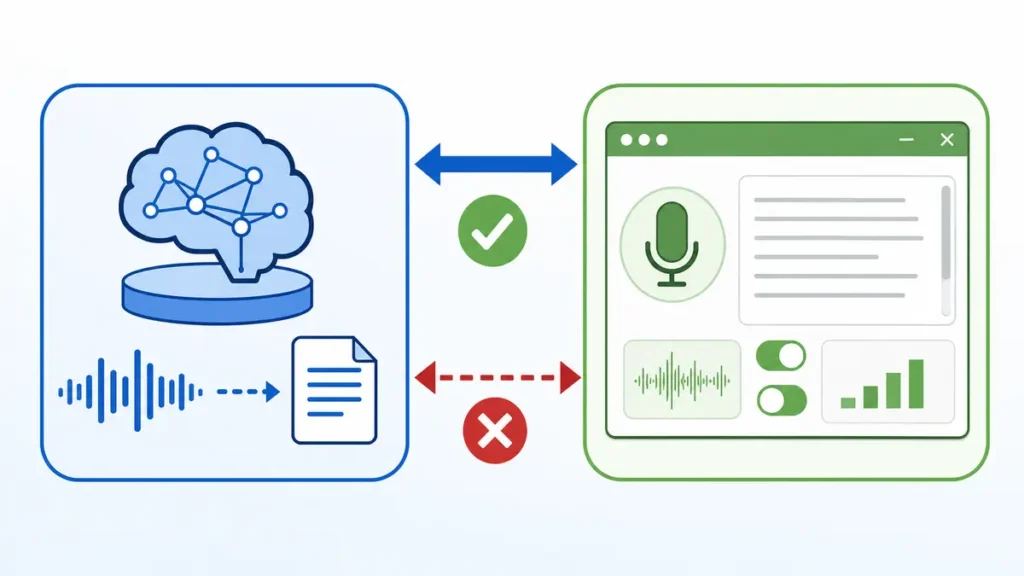
Download only from the developer’s GitHub project, Const-me/Whisper. The maintainer explicitly warns that whisperdesktop.com impersonates the project and should not be trusted as the official download source. Avoid third-party installers, bundled “AI booster” tools or search-ad download links.
Const-me Whisper Desktop vs OpenAI Whisper
| Question | Const-me Whisper Desktop | OpenAI Whisper |
|---|---|---|
| Primary interface | Windows desktop GUI | Python-based toolkit and CLI |
| Ideal user | People who want to manually transcribe local recordings | Developers and automation workflows |
| Download source | Const-me’s GitHub Releases | OpenAI’s GitHub repository |
| Model compatibility | Centered on models supported by the older Windows implementation | Varies by the currently maintained OpenAI implementation |
| Cloud requirement | The supported local workflow can run offline after installation/model download | The open-source model also runs locally when configured appropriately |
| Recent development | Latest visible GitHub release 1.12 from 2023 | A different project with its own maintenance and model support |
Step 1: download WhisperDesktop.zip from GitHub
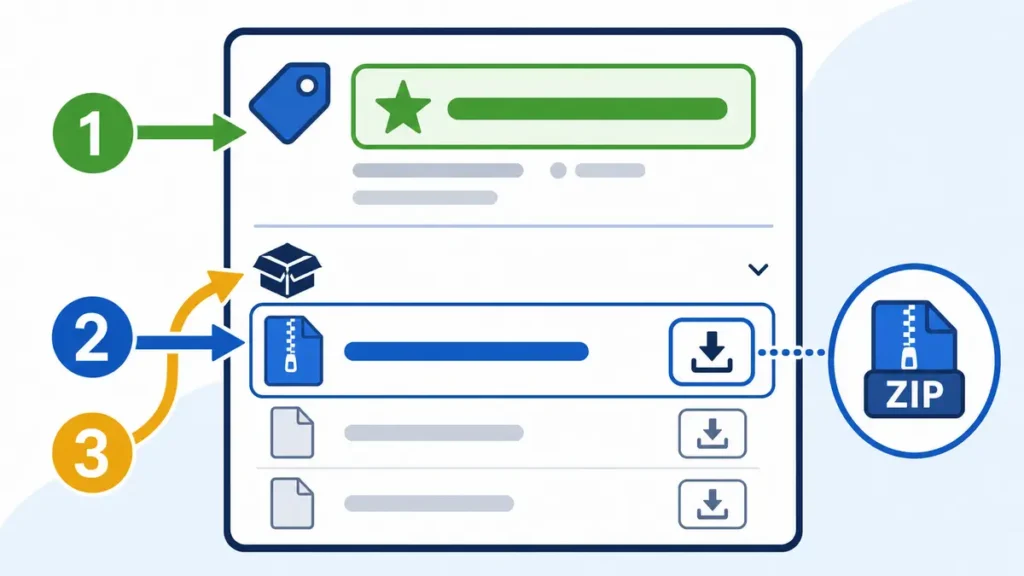
- Open Const-me/Whisper Releases in your browser.
- Open Version 1.12 or the latest official release available at the time you visit.
- Under Assets, locate
WhisperDesktop.zip. Do not choose library/CLI archives unless you specifically need those components. - Download the file, then confirm that the source is the real GitHub release page. Your organization’s endpoint security policy still applies.
- Keep a copy of the release information so you can identify the version you tested.
Step 2: extract the ZIP and launch WhisperDesktop.exe
- In File Explorer, locate the downloaded ZIP and choose Extract All.
- Choose a folder where you have permission to run local applications.
- Open the extracted files and launch
WhisperDesktop.exe. - If Windows SmartScreen warns about an unfamiliar executable, verify the publisher/source and follow your organization’s software policy. Never bypass a security warning solely because a tutorial says to.
- When prompted for a model, continue to the next section; the GUI alone does not include every needed weight file.
Step 3: choose a compatible model file
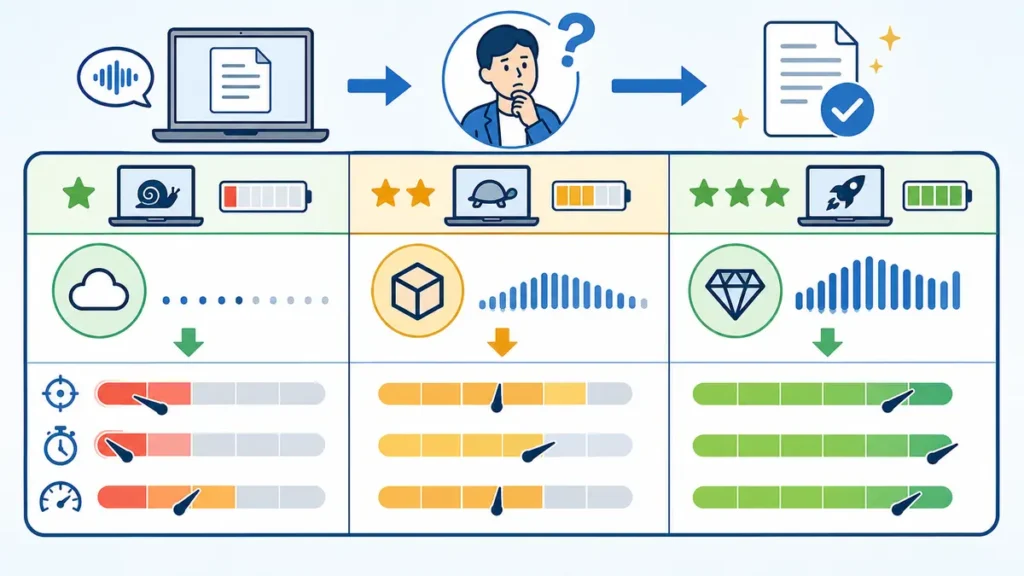
Whisper model weights are separate from the desktop executable. The original guide links to model files associated with whisper.cpp on Hugging Face. Some models may have been added long after the Windows app’s last release and are not guaranteed to be supported. Start with the model format and size recommended by the Const-me project, such as the conventional ggml-medium.bin or a smaller compatible model.
| Model tier | Typical use in the older app | Trade-off |
|---|---|---|
| tiny / base | Quick trial on limited hardware | Small download and lower resource use; recognition may be weaker |
| small | Often a balanced first try | Lower resource cost than medium; quality varies with audio |
| medium | Maintainer-recommended traditional model | Larger download and memory/compute footprint |
| large-v3 / turbo and newer variants | Compatibility should not be assumed | Older Const-me Windows builds have reported model-format issues |
Step 4: configure the initial model settings
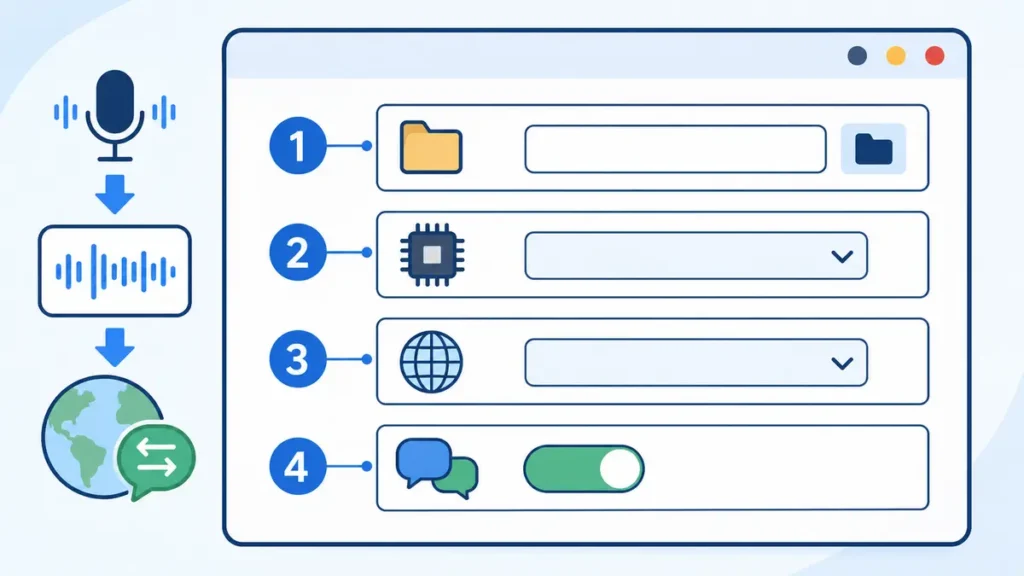
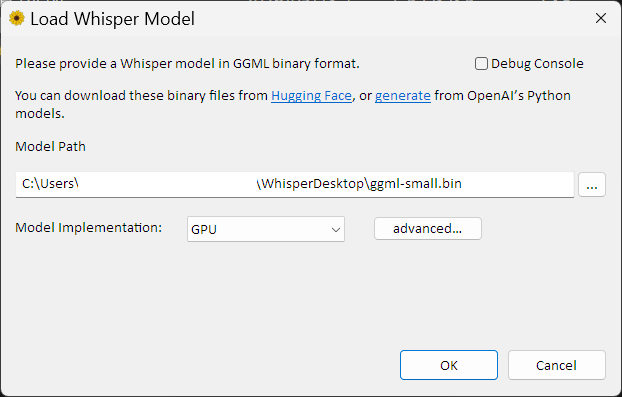
- Select the downloaded
.binmodel in the Model Path selector. - Choose a suitable model implementation / GPU option in the GUI based on the hardware supported by the application.
- On a Windows PC with compatible graphics hardware, test GPU acceleration; do not assume an NVIDIA GPU is mandatory, as the project uses DirectCompute.
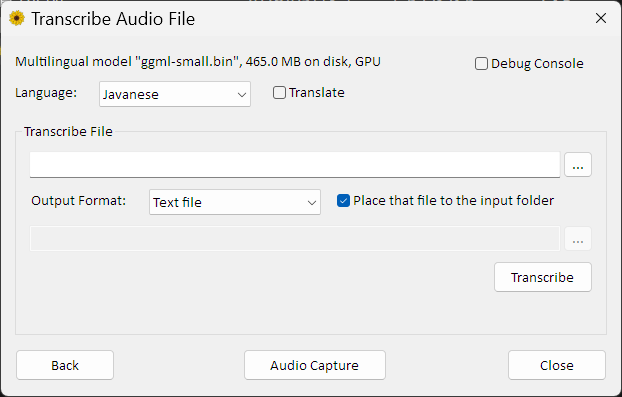
- Set the language explicitly for known-language audio when appropriate. For Japanese recordings, our earlier guide used Japanese and disabled Translate to keep transcription rather than English translation.
- Load the model, run a short test recording, and inspect the resulting output before processing long or confidential meetings.
Step 5: transcribe a local audio file
- Record clear audio and save it to a local folder you can protect.
- Choose the file in Whisper Desktop’s transcription screen. Supported formats depend on the Windows Media Foundation components and app build.
- Use transcription mode rather than translation when you want the text in the original language.
- Start processing and review the generated text, correcting speaker names, punctuation and specialized terms.
- Save the final transcript to an approved location, especially when it contains meeting or personal information.
Does the recording actually remain on the PC?
The Const-me implementation is designed for local inference: audio is processed by the installed application and locally loaded model. After installation and model download, the basic speech-to-text workflow can operate without uploading every audio recording to a vendor’s cloud service. Nevertheless, workstation backups, sync folders, crash-report settings and other software can still move files off the PC. Review your data classification and storage policies.
What we observed in earlier hands-on testing
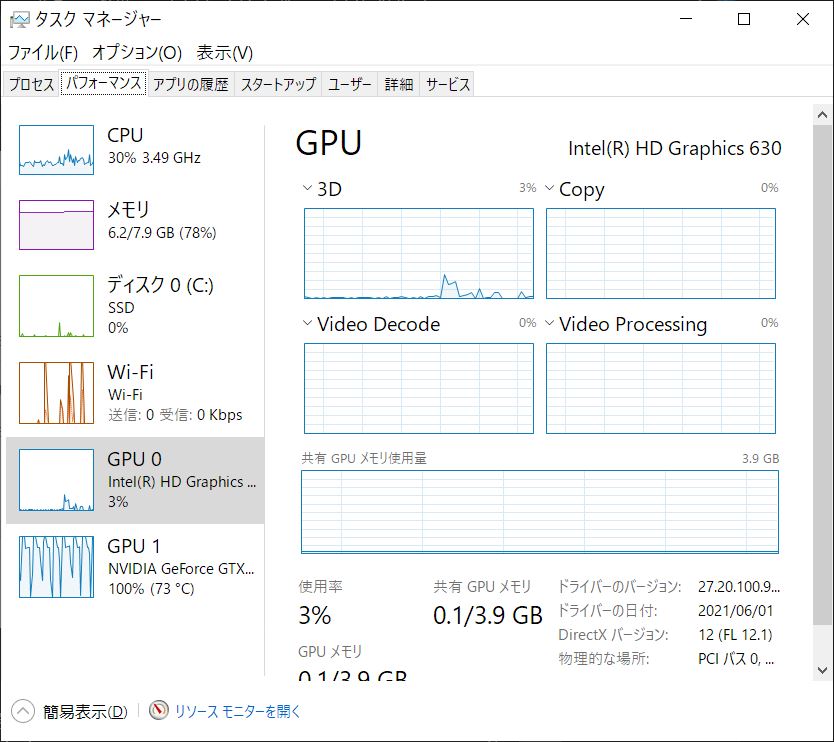
The original Japanese review includes experiments with a low-quality recording captured inside clothing and a clearer tabletop meeting recording, plus GPU utilization observations. Clear audio produced more useful transcription. The earlier test used a Windows PC with GeForce GTX 1050 hardware and a conventional medium-sized model. Those are historical results, not new November 2026 measurements.
Troubleshooting and security notes
- No model loads: check that the model file uses a compatible format and that RAM, GPU capabilities, AVX/F16C support and drivers meet the application’s requirements.
- New large model crashes: do not assume that a model released after Version 1.12 works in the older app. Try a supported small or medium build or another maintained implementation.
- Transcript quality is poor: improve microphone placement and background noise before increasing model size.
- Audio file cannot open: verify the supported container/codec and the locally installed Windows media components.
- Download page looks suspicious: navigate directly to the developer’s GitHub page; the maintainer warns against an impersonating domain.
- Audio is confidential: get required consent before recording and use approved local storage, access controls and retention schedules.
FAQ
Is Whisper Desktop free?
The Const-me open-source Windows project provides free downloadable releases. The maintainer has also discussed a separate, newer commercial successor; do not confuse its terms with the legacy application.
Do I need Python or the OpenAI API?
No for the conventional Const-me Windows GUI workflow. The official OpenAI Whisper project has different installation and programming requirements.
Will it work on any PC?
No. CPU instruction support, GPU capabilities, available RAM, model size and drivers matter. The developer’s documented build prerequisites and the chosen model should be checked.
Can it transcribe languages other than English?
Yes, with compatible multilingual model weights and a supported language setting. Smaller or English-only model files have different capabilities.
Sources and update notes
- Const-me/Whisper: original developer repository and important warning
- Const-me: official releases
- OpenAI: original Whisper project
- Japanese hands-on guide and historical screenshots
Repository availability checked November 8, 2026. Old screenshots are retained only as historical examples. This English adaptation did not reinstall or retest the program on a new Windows machine.