

In the Microsoft Copilot desktop app, in-app browsing determines where links in chat answers open. A link can open beside the chat or in the default Windows browser. If Copilot says “Web browsing is turned off” and a link still opens in Edge, Chrome, or another browser, you can read it there.
This guide covers the Windows 11 desktop app. The first sections show what the setting does and what to check when it is unavailable. If you manage company PCs, jump to the Group Policy walkthrough or the ADMX policy reference.
What is web browsing in Microsoft Copilot?
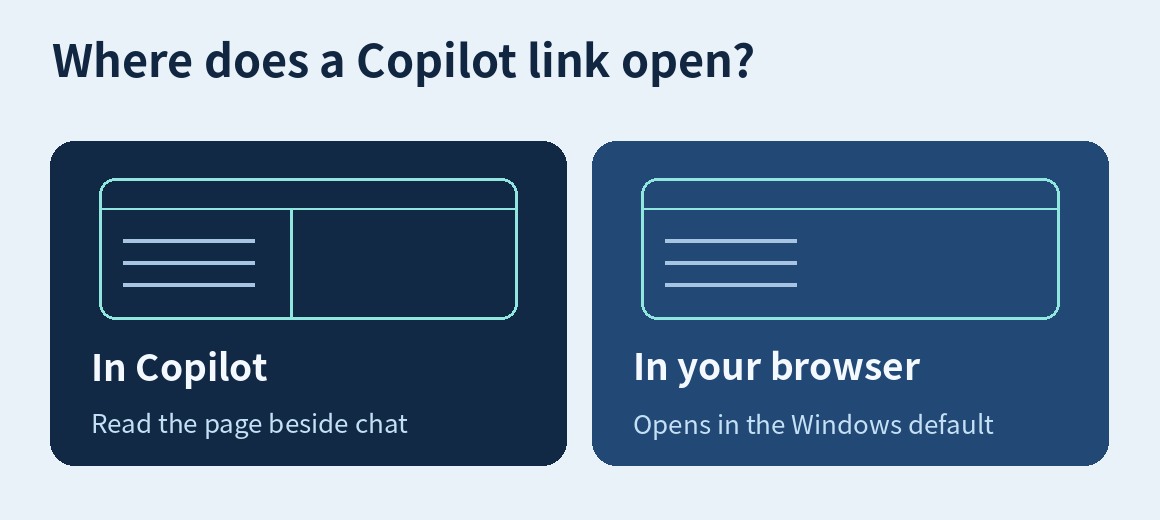
Suppose you ask Copilot about a train journey and click the operator’s website in the answer. In-app browsing keeps the timetable beside the chat so you can read both. External browsing opens the same page in your usual Windows browser, where you may already be signed in or have relevant bookmarks.
| Feature | What it does |
|---|---|
| In-app browsing | Opens a link you click in a browsing pane inside Copilot. |
| Web search | Lets Copilot use public web information when writing an answer. |
| Cowork browser actions | Lets Copilot operate the browser on your behalf for a requested task, where the feature is available. |
A link opening in Edge says nothing about whether Copilot used web sources in the answer. If your question is why a work chat cannot search the public web, check the separate Copilot Chat web search controls.
What to do when web browsing is turned off
If you just want to read the linked page, click the link first. If it opens in your default browser, you can continue there. If it opens inside Copilot and you prefer a separate window, use the link menu’s external-browser option when available, or copy the URL into your browser.
| Your situation | What to check |
|---|---|
| Personal account on your own PC | Confirm the signed-in account in your profile. If the app shows an editable browsing setting, change it and click an answer link to check where it opens. |
| Work or school account | Your organization may route links to the default browser. If you need side-by-side browsing for work, give IT the message you see and your Copilot app version. |
| The setting says it is controlled by your organization | Ask your device administrator. Use the browser and account your organization authorizes for work sites. |
If the setting is missing, check which Copilot app and version are installed and whether an update is available through the device’s approved update channel. Feature availability can vary by version and rollout. If neither browser opens a page, try the trusted URL directly in your usual browser to distinguish a link-opening issue from a site outage or access rule.
Should you leave it on or off?
Keep it on if you like reading a source next to your conversation. Open links externally if you prefer to keep work sites, bookmarks, and existing sign-ins in one browser. Microsoft’s rollout notice says that in-app browsing history, cookies, and autofill information are stored locally on the device. Follow your workplace’s browser rules on shared computers.
IT admins: Enable in-app browsing through Group Policy
This example targets the unified Microsoft Copilot desktop app on Windows 11. Microsoft Learn lists app version 152 and later for BrowsingEnabled. Check the installed build and test with an Entra ID account before deploying the setting more widely.
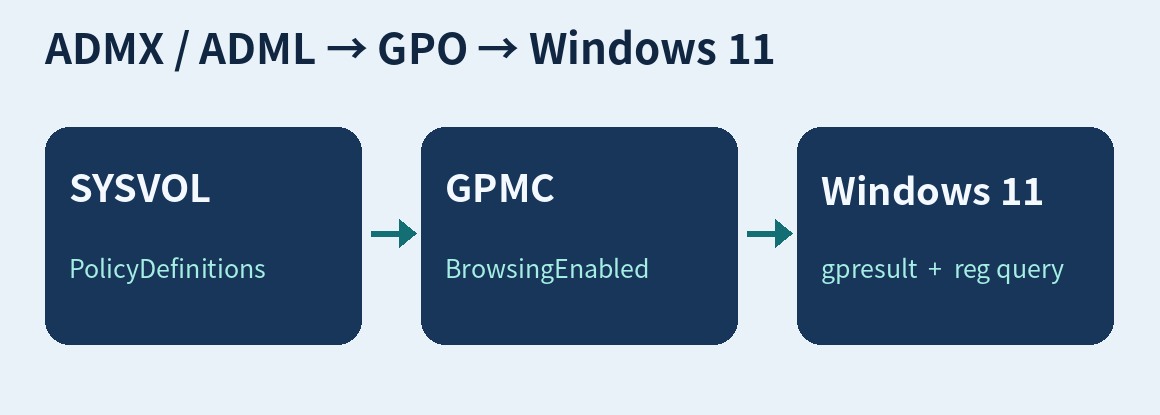
Download the Copilot ADMX files and install them in the Central Store
- In Microsoft’s unified app deployment guide, follow the Copilot update policy file link to obtain MicrosoftCopilotPolicyTemplates.cab.
- Extract the CAB to a working folder. Locate
copilotapp.admx,copilotupdate.admx, and the matching.admlfiles. Keep the language folders and filenames from the package. - Back up your existing Central Store. Put the ADMX files in
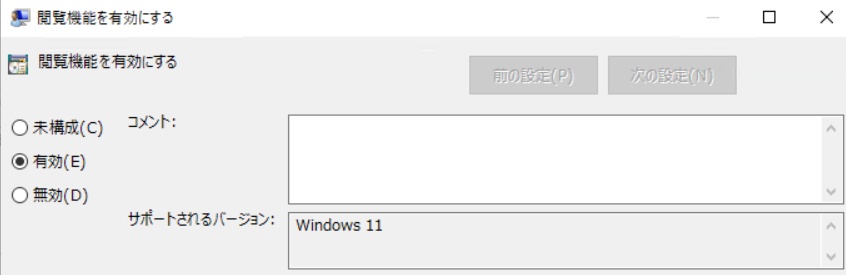
\\example.test\SYSVOL\example.test\Policies\PolicyDefinitionsand the ADML files in the appropriate folders below it, such asen-USorja-JP. Replace the example domain with your own. See Microsoft’s Central Store documentation. - In Group Policy Management, edit a GPO linked to a pilot computer OU. Go to Computer Configuration → Policies → Administrative Templates → Microsoft Copilot → Browsing → Enable browsing capabilities.
- Set the policy to Enabled. On a pilot device, run
gpupdate /target:computer /forceand relaunch Copilot if needed. Rungpresult /scope computer /r, check the registry value, sign in with an Entra ID account, and click a known link in a chat response. Also test explicitly opening it in the external browser.
| GPO state | Personal Microsoft account | Work or school account (Entra ID) |
|---|---|---|
| Enabled | The in-app pane is available | The in-app pane is available |
| Disabled | Opens in the default browser | Opens in the default browser |
| Not configured | The in-app pane is available | Opens in the default browser |
This table follows the help strings in the supplied Japanese and English ADML files. The public Microsoft Learn page describes the unconfigured setting without an account-specific breakdown. Confirm the default on your deployed build and explicitly enable the policy on the work-account pilot. The ADMX defines the policy for both Computer and User Configuration. The walkthrough uses computer scope.
Check the registry or test on an isolated PC
Computer scope uses the BrowsingEnabled REG_DWORD under HKLM\SOFTWARE\Policies\Microsoft\Copilot. A value of 1 enables it and 0 disables it. Read the current value without changing it:
reg query "HKLM\SOFTWARE\Policies\Microsoft\Copilot" /v BrowsingEnabledFor a one-device test outside the domain policy’s scope, record the original state first. Run the following from an elevated PowerShell or Command Prompt. Manage production devices through their policy source.
reg add "HKLM\SOFTWARE\Policies\Microsoft\Copilot" /v BrowsingEnabled /t REG_DWORD /d 1 /fRestore the original value after the test. If it was absent, remove the test value with reg delete "HKLM\SOFTWARE\Policies\Microsoft\Copilot" /v BrowsingEnabled /f. For a GPO rollback, restore its original state, refresh policy, and verify the link behavior in the app.
What to test before deploying the built-in browser
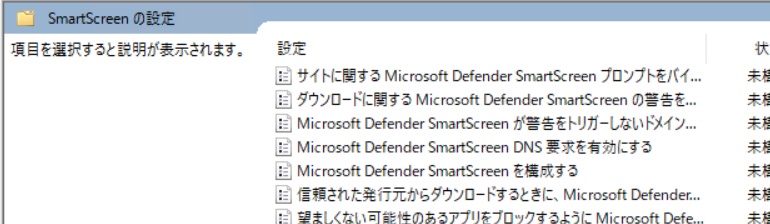
| Scenario | Control and verification |
|---|---|
| Unsafe pages and downloads | Enable SmartScreenEnabled and test the warning override policies for websites and files separately. |
| HTTPS certificate warnings | Disable SSLErrorOverrideAllowed to prevent proceeding past warnings. Verify business sites through the path that uses your corporate CA or TLS inspection. |
| Importing browser data | If the organization has no need to import from Edge or Chrome, disable BrowserDataImportEnabled. Test authentication in both browser profiles. |
| Proxy, filtering and audit visibility | Test allowed and blocked sites, SSO, and downloads in both the external browser and the app. Compare endpoint and gateway logs and review ProxySettings and DnsOverHttpsMode. |
| Cowork automation | Disable CopilotCoworkToolActionsEnabled where automation is outside policy. For approved use, scope the destination list narrowly. Wildcards can also affect private-network exemptions. |
| Updates and rollback | Keep both application and component updates available. Record pilot OU membership, original settings, and how to return to external link handling. |
Copilot and Edge have separate administrative templates. Validate which existing proxy, filtering, and DLP controls cover the in-app browser on your own devices. If policy calls for blocking delegated browser actions, set the dedicated Cowork control. A link-routing policy alone leaves that permission unaddressed.
Complete Copilot ADMX policy reference
The package contains 73 definitions: 58 mandatory app entries, 10 recommended counterparts, and five updater entries. That makes 63 distinct settings. Each setting with a recommended counterpart is marked below.
Mandatory policies enforce a setting. Recommended policies supply a user-changeable default. Check availability on the target build and management configuration. Each registry entry below is relative to Software\Policies\Microsoft\. Computer scope uses HKLM, and user scope uses HKCU.
Link handling, Cowork, and URL rules | SmartScreen and Website Typo Protection | HTTP authentication | Cookies and site content | DNS, proxies, and local networks | Downloads and files | Security and privacy | Import, camera access, and other settings | Component updates | Copilot app installation, updates, and deployment
Link handling, Cowork, and URL rules
Template support label: Windows 11.
Enable browsing capabilitiesBrowsingEnabled
Routes links clicked in Copilot answers. 1 makes the pane available to personal and Entra accounts. 0 sends links to the default browser. When unset, the pane is available for personal accounts and Entra links open externally.
Registry: Copilot → BrowsingEnabled
Allow Copilot to take browser actions on your behalf.CopilotCoworkToolActionsEnabled
Controls whether Cowork can browse on a user's behalf. Enabled or disabled locks the switch. When unset, users can choose in Settings, subject to feature availability.
Registry: Copilot → CopilotCoworkToolActionsEnabled
Allow Copilot browser use on specified URLsCopilotBrowserUseAllowList
Allows agent browsing on matching destinations. Unset leaves the blocklist in effect. An explicitly empty allowlist denies every destination. The first 1,500 entries apply. Wildcards can also affect exemptions from private-network checks.
Registry: Copilot\CopilotBrowserUseAllowList (list subkey)
Block Copilot browser use on specified URLsCopilotBrowserUseBlockList
Blocks matching agent-browsing destinations. An equally or more specific allow rule wins. An unset or empty blocklist adds no blocks. Only the first 1,500 entries apply.
Registry: Copilot\CopilotBrowserUseBlockList (list subkey)
Define a list of allowed URLsURLAllowlist
Adds exceptions to the ordinary browsing blocklist. The first 1,000 entries apply. Allow rules can also affect external protocol handlers, so keep them narrow.
Registry: Copilot\URLAllowlist (list subkey)
Block access to a list of URLsURLBlocklist
Blocks ordinary navigation to matching URLs. The first 1,000 entries apply. In-page JavaScript navigation can bypass a path-level rule without a reload. Unset adds no blocks.
Registry: Copilot\URLBlocklist (list subkey)
SmartScreen and Website Typo Protection
Template support label: Windows 11.
Configure Microsoft Defender SmartScreenSmartScreenEnabled / Recommended ID SmartScreenEnabled_recommended
Controls SmartScreen protection against phishing and malicious software. Unset starts enabled and users can change it. Check managed-device requirements.
Registry: Copilot → SmartScreenEnabled / Recommended: Copilot\Recommended → SmartScreenEnabled
Prevent bypassing Microsoft Defender SmartScreen prompts for sitesPreventSmartScreenPromptOverride
Enabled prevents bypassing SmartScreen warnings about websites. Disabled or unset permits an override. Managed-device requirements apply.
Registry: Copilot → PreventSmartScreenPromptOverride
Prevent bypassing of Microsoft Defender SmartScreen warnings about downloadsPreventSmartScreenPromptOverrideForFiles
Enabled stops users from overriding warnings on unverified downloads. Disabled or unset permits an override. Managed-device requirements apply.
Registry: Copilot → PreventSmartScreenPromptOverrideForFiles
Configure the list of domains for which Microsoft Defender SmartScreen won't trigger warningsSmartScreenAllowListDomains
Exempts matching domains and hosted downloads from SmartScreen checks. The usual checks apply when unset. Defender for Endpoint organizations use portal indicators because this policy is ignored there.
Registry: Copilot\SmartScreenAllowListDomains (list subkey)
Enable Microsoft Defender SmartScreen DNS requestsSmartScreenDnsRequestsEnabled / Recommended ID SmartScreenDnsRequestsEnabled_recommended
Allows SmartScreen DNS lookups when enabled or unset. Disabling lookups can affect IP-based protection. Check managed-device requirements.
Registry: Copilot → SmartScreenDnsRequestsEnabled / Recommended: Copilot\Recommended → SmartScreenDnsRequestsEnabled
Force Microsoft Defender SmartScreen checks on downloads from trusted sourcesSmartScreenForTrustedDownloadsEnabled / Recommended ID SmartScreenForTrustedDownloadsEnabled_recommended
Includes downloads from trusted sources in reputation checks when enabled or unset. Disabled skips checks for trusted sources, determined by the Internet zone on Windows.
Registry: Copilot → SmartScreenForTrustedDownloadsEnabled / Recommended: Copilot\Recommended → SmartScreenForTrustedDownloadsEnabled
Configure Microsoft Defender SmartScreen to block potentially unwanted appsSmartScreenPuaEnabled / Recommended ID SmartScreenPuaEnabled_recommended
Controls blocking of potentially unwanted apps. Unset starts disabled and users can change it. Check managed-device requirements.
Registry: Copilot → SmartScreenPuaEnabled / Recommended: Copilot\Recommended → SmartScreenPuaEnabled
Configure Website Typo ProtectionTyposquattingCheckerEnabled / Recommended ID TyposquattingCheckerEnabled_recommended
Turns warnings about possible lookalike domains on or off. When unset, the checker starts enabled and users can change it.
Registry: Copilot → TyposquattingCheckerEnabled / Recommended: Copilot\Recommended → TyposquattingCheckerEnabled
Prevent bypassing Website Typo Protection prompts for sitesPreventTyposquattingPromptOverride
Enabled prevents users from proceeding past a typo-protection warning. Disabled or unset allows an override. The checker must be active and managed-device requirements apply.
Registry: Copilot → PreventTyposquattingPromptOverride
HTTP authentication
Template support label: Windows 11.
Specifies a list of servers that Microsoft Copilot can delegate user credentials toAuthNegotiateDelegateAllowlist
Accepts a comma-separated list of servers eligible for credential delegation. When unset, credentials are never delegated by this mechanism, even to detected intranet hosts.
Registry: Copilot → AuthNegotiateDelegateAllowlist
Supported authentication schemesAuthSchemes
Selects HTTP authentication schemes using comma-separated, case-sensitive values: basic, digest, ntlm, negotiate. All four are available by default.
Registry: Copilot → AuthSchemes
Configure list of allowed authentication serversAuthServerAllowlist
Defines servers eligible for integrated authentication. Proxy challenges can also qualify. By default the app detects intranet servers and ignores Internet-origin server challenges.
Registry: Copilot → AuthServerAllowlist
Allow Basic authentication for HTTPBasicAuthOverHttpEnabled
Enabled or unset permits Basic challenges over cleartext HTTP. Disabled requires HTTPS. If AuthSchemes excludes Basic, Basic is unavailable.
Registry: Copilot → BasicAuthOverHttpEnabled
Windows Hello For HTTP Auth EnabledWindowsHelloForHTTPAuthEnabled / Recommended ID WindowsHelloForHTTPAuthEnabled_recommended
Uses the Windows credential UI for NTLM and Negotiate by default or when enabled. Disabled uses the app's username and password prompt.
Registry: Copilot → WindowsHelloForHTTPAuthEnabled / Recommended: Copilot\Recommended → WindowsHelloForHTTPAuthEnabled
Cookies and site content
Template support label: Windows 11.
Configure cookiesDefaultCookiesSetting
Sets the cookie default. 1 allows, 2 blocks, and 4 keeps cookies for the session. When unset, cookies are allowed initially and users can change the setting.
Registry: Copilot → DefaultCookiesSetting
Allow cookies on specific sitesCookiesAllowedForUrls
Lets matching sites set cookies. A pair of patterns can grant a third-party site access only under a specified top-level site. Falls back to global or user settings. Avoid conflicting block rules.
Registry: Copilot\CookiesAllowedForUrls (list subkey)
Block cookies on specific sitesCookiesBlockedForUrls
Blocks cookies for matching sites. Falls back to the global or user setting. Avoid conflicting allow rules.
Registry: Copilot\CookiesBlockedForUrls (list subkey)
Block third party cookiesBlockThirdPartyCookies / Recommended ID BlockThirdPartyCookies_recommended
Blocks third-party cookies in regular browsing when enabled and allows them when disabled. When unset, they start out allowed and users can change the setting.
Registry: Copilot → BlockThirdPartyCookies / Recommended: Copilot\Recommended → BlockThirdPartyCookies
Default images settingDefaultImagesSetting
Sets the image default to allow (1) or block (2). If unset, images start out allowed and users can change the setting.
Registry: Copilot → DefaultImagesSetting
Default JavaScript settingDefaultJavaScriptSetting
Sets the JavaScript default to allow (1) or block (2). If unset, scripts start out allowed and users can change the setting.
Registry: Copilot → DefaultJavaScriptSetting
Default notification settingDefaultNotificationsSetting
Sets notification behavior to allow (1), block (2), or ask (3). The supplied help describes an initially permissive, user-changeable default.
Registry: Copilot → DefaultNotificationsSetting
Allow notifications on specific sitesNotificationsAllowedForUrls
Allows notifications from matching sites. With no list, the notification default or user setting applies.
Registry: Copilot\NotificationsAllowedForUrls (list subkey)
Block notifications on specific sitesNotificationsBlockedForUrls
Blocks notifications from matching sites. With no list, the notification default or user setting applies.
Registry: Copilot\NotificationsBlockedForUrls (list subkey)
Default pop-up window settingDefaultPopupsSetting
Sets the pop-up default to allow (1) or block (2). When unset, pop-ups start out blocked and users can change the setting.
Registry: Copilot → DefaultPopupsSetting
Allow pop-up windows on specific sitesPopupsAllowedForUrls
Lets matching sites open pop-ups. With no list, the pop-up default or user setting applies.
Registry: Copilot\PopupsAllowedForUrls (list subkey)
Block pop-up windows on specific sitesPopupsBlockedForUrls
Blocks pop-ups on matching sites. With no list, the pop-up default or user setting applies.
Registry: Copilot\PopupsBlockedForUrls (list subkey)
DNS, proxies, and local networks
Template support label: Windows 11.
Use built-in DNS clientBuiltInDnsClientEnabled
Chooses the DNS client stack. It leaves the configured DNS servers intact. The built-in stack is the default and continues to handle DoH even when this policy is disabled.
Registry: Copilot → BuiltInDnsClientEnabled
Control the mode of DNS-over-HTTPSDnsOverHttpsMode
off disables DoH, automatic permits ordinary DNS fallback, and secure requires DoH. The supplied template documents no DoH queries by default on managed devices.
Registry: Copilot → DnsOverHttpsMode
DNS interception checks enabledDNSInterceptionChecksEnabled
Checks whether a proxy redirects unknown hostnames. Enabled or unset performs the checks. Disabling avoids the associated DNS and HTTP probes.
Registry: Copilot → DNSInterceptionChecksEnabled
Enable network predictionNetworkPredictionOptions / Recommended ID NetworkPredictionOptions_recommended
Controls DNS prefetch, preconnection, and prerendering. 0 enables prediction and 2 disables it. The unsupported Wi-Fi-only value 1 behaves like 0. When unset, prediction starts enabled and users can change it.
Registry: Copilot → NetworkPredictionOptions / Recommended: Copilot\Recommended → NetworkPredictionOptions
Allow QUIC protocolQuicAllowed
Permits QUIC when enabled or unset and blocks it when disabled. Check behavior with the organization's proxy and filtering.
Registry: Copilot → QuicAllowed
Allow sites to make network requests to local devices and local network endpoints.LocalNetworkAccessAllowedForUrls
Exempts requests from matching origins from Local Network Access checks. Other origins follow applicable restrictions and user settings. Keep exceptions narrow because they can reach private destinations.
Registry: Copilot\LocalNetworkAccessAllowedForUrls (list subkey)
Proxy settingsProxySettings
Uses JSON to configure direct, system, auto-detect, fixed-server, or PAC mode. ProxyPacMandatory can prevent direct fallback when PAC fails. Users choose their proxy settings when unset.
Registry: Copilot → ProxySettings
Downloads and files
Template support label: Windows 11.
Allow download restrictionsDownloadRestrictions / Recommended ID DownloadRestrictions_recommended
0 uses ordinary protection, 1 blocks dangerous downloads and file types, 2 adds potentially dangerous or unwanted downloads, 3 blocks downloads, and 4 targets known malicious downloads. Page saving and printing to PDF fall outside this policy.
Registry: Copilot → DownloadRestrictions / Recommended: Copilot\Recommended → DownloadRestrictions
List of file types that should be automatically opened on downloadAutoOpenFileTypes
Lists extensions to open automatically, without a leading dot. Active SmartScreen checks still apply. When unset, only user-selected types open automatically.
Registry: Copilot\AutoOpenFileTypes (list subkey)
URLs where AutoOpenFileTypes can applyAutoOpenAllowedForURLs
Limits policy-driven automatic opening to matching source URLs. Without a list, listed file types can open from any URL. User-selected auto-open entries are unaffected.
Registry: Copilot\AutoOpenAllowedForURLs (list subkey)
Ask where to save downloaded filesPromptForDownloadLocation
Enabled prompts for a destination for each download. When unset, downloads initially save to the default location and the user can change the preference.
Registry: Copilot → PromptForDownloadLocation
Security and privacy
Template support label: Windows 11.
Enhance the security state in Microsoft CopilotEnhanceSecurityMode
Selects standard (0), balanced (1), or strict (2) browsing security. Test application compatibility before enforcing enhanced modes.
Registry: Copilot → EnhanceSecurityMode
Enable Application Bound EncryptionApplicationBoundEncryptionEnabled
Binds local-data encryption keys to the app where possible when enabled or unset. Consider disabling only for a documented compatibility need, such as profile portability.
Registry: Copilot → ApplicationBoundEncryptionEnabled
Allow users to proceed from the HTTPS warning pageSSLErrorOverrideAllowed
Enabled or unset permits proceeding past certificate warning pages. Disabled prevents proceeding.
Registry: Copilot → SSLErrorOverrideAllowed
Enable site isolation for every siteSitePerProcess
Enabled prevents opting out of default site isolation. Disabled or unset lets users opt out while site isolation remains the default.
Registry: Copilot → SitePerProcess
Specifies whether SharedArrayBuffers can be used in a non cross-origin-isolated contextSharedArrayBufferUnrestrictedAccessAllowed
Enabled permits SharedArrayBuffer outside cross-origin isolation. Disabled or unset limits access to isolated contexts.
Registry: Copilot → SharedArrayBufferUnrestrictedAccessAllowed
Control where developer tools can be usedDeveloperToolsAvailability
0 restricts tools for policy-installed extensions by default, 1 allows tools, and 2 blocks them. CDP targets are also affected. Full source-view restrictions also require a view-source: URL rule.
Registry: Copilot → DeveloperToolsAvailability
Block tracking of users' web-browsing activityTrackingPrevention
Sets tracking prevention to off (0), basic (1), balanced (2), or strict (3). Disabled or unset leaves the level to the user. Strict can affect site features.
Registry: Copilot → TrackingPrevention
Configure Do Not TrackConfigureDoNotTrack
Sends or suppresses the Do Not Track signal. When unset, sending starts off and the user can change it. The signal expresses a preference to sites.
Registry: Copilot → ConfigureDoNotTrack
Import, camera access, and other settings
Template support label: Windows 11.
Enable import of browser dataBrowserDataImportEnabled
Controls recurring import of items such as cookies, history, and passwords from Edge or Chrome. Even when allowed, import starts only with user consent. Disabled locks import off.
Registry: Copilot → BrowserDataImportEnabled
Allow websites to query for available payment methodsPaymentMethodQueryEnabled
Allows sites to query whether a payment method is stored when enabled or unset. Disabled makes the relevant Payment Request APIs report no available method.
Registry: Copilot → PaymentMethodQueryEnabled
Sites that can access video capture devices without requesting permissionVideoCaptureAllowedUrls
Grants matching origins video-capture access without a user prompt. A standalone wildcard that matches every site is unsupported.
Registry: Copilot\VideoCaptureAllowedUrls (list subkey)
Use graphics acceleration when availableHardwareAccelerationModeEnabled
Uses hardware graphics acceleration if available when enabled or unset. Disabled turns it off.
Registry: Copilot → HardwareAccelerationModeEnabled
Set the system default printer as the default printerPrintPreviewUseSystemDefaultPrinter / Recommended ID PrintPreviewUseSystemDefaultPrinter_recommended
Enabled preselects the system default printer in print preview. Disabled or unset preselects the most recently used printer.
Registry: Copilot → PrintPreviewUseSystemDefaultPrinter / Recommended: Copilot\Recommended → PrintPreviewUseSystemDefaultPrinter
Component updates
Template support label: Windows 11.
Enable component updates in Microsoft CopilotComponentUpdatesEnabled
Enables component updates by default. Disabled still permits exempt updates, including critical security lists. A supported ComponentUpdatesMode setting takes precedence from version 158.
Registry: Copilot → ComponentUpdatesEnabled
Configure component updatesComponentUpdatesMode
0 updates all components, 1 keeps critical exemptions, and 2 stops all component updates, including security lists. Invalid or unset values fall back to the older policy. Restart the app. App updates have their own policy.
Registry: Copilot → ComponentUpdatesMode
Copilot app installation, updates, and deployment
Template support label: Microsoft Edge Update 1.3.251.9 and later. These updater policies are computer-scope only.
Allow installationPol_AllowInstallationMicrosoftCopilot
Controls installation through Edge Update. 0 blocks, 1 allows, and 5 force-installs machine-wide on eligible devices. Installation is allowed by default.
Registry: EdgeUpdate → Install{C50565E9-CCCF-44B4-BA15-5AC5C6569197}
Update policy overridePol_UpdatePolicyMicrosoftCopilot
Controls automatic application updates. 1 allows them and 0 disables them. Updates remain automatic when the policy is unset or disabled. The off option also prevents security updates.
Registry: EdgeUpdate → Update{C50565E9-CCCF-44B4-BA15-5AC5C6569197}
Specify uninstall behavior for CopilotPol_UninstallMicrosoftCopilot
Applies to Stable on AD-joined devices. 1 uninstalls while keeping data, 2 deletes data too, 3 prevents user uninstall, and 0 is the unconfigured option. Forced installation takes precedence if both policies request action.
Registry: EdgeUpdate → Uninstall{C50565E9-CCCF-44B4-BA15-5AC5C6569197}
Allow Copilot UnificationPol_CopilotUnificationAllowedMicrosoftCopilot
Controls unification on AD-joined devices. 1 requests unification on the next automatic Edge Update check. 0 or unset follows the standard rollout.
Registry: EdgeUpdate → CopilotUnificationAllowed{C50565E9-CCCF-44B4-BA15-5AC5C6569197}
Target Channel overridePol_TargetChannelMicrosoftCopilot
Selects the stable or beta application update channel on AD-joined devices. Disabled or unset follows Stable.
Registry: EdgeUpdate → TargetChannel{C50565E9-CCCF-44B4-BA15-5AC5C6569197}
Sources and verification scope
Checked November 11, 2026 (Japan time). The reference is based on Microsoft’s supplied copilotapp.admx, copilotupdate.admx, and matching Japanese and English ADML files. The files establish which policies are defined. Runtime behavior across all policies and builds remains untested.