


If messages to Outlook.com or Hotmail bounce with 550 5.7.1 and S3150, save the full rejection and identify the sending mail server’s public IP. The observed rejection says part of the sending network is on Microsoft’s block list. Your mail provider and Outlook.com Sender Support are the appropriate starting points.
This guide is based on a documented delivery incident and Microsoft’s sender guidance. In the original case, delivery worked about two days after a review request. That is one observed result, not a guaranteed response or recovery time.
What does the S3150 rejection mean?
A typical diagnostic includes 550 5.7.1, messages from [IP] and S3150. Read the complete error: 550 5.7.1 alone can describe several policy failures. Do not assume every 5.7.1 bounce is an S3150 block.
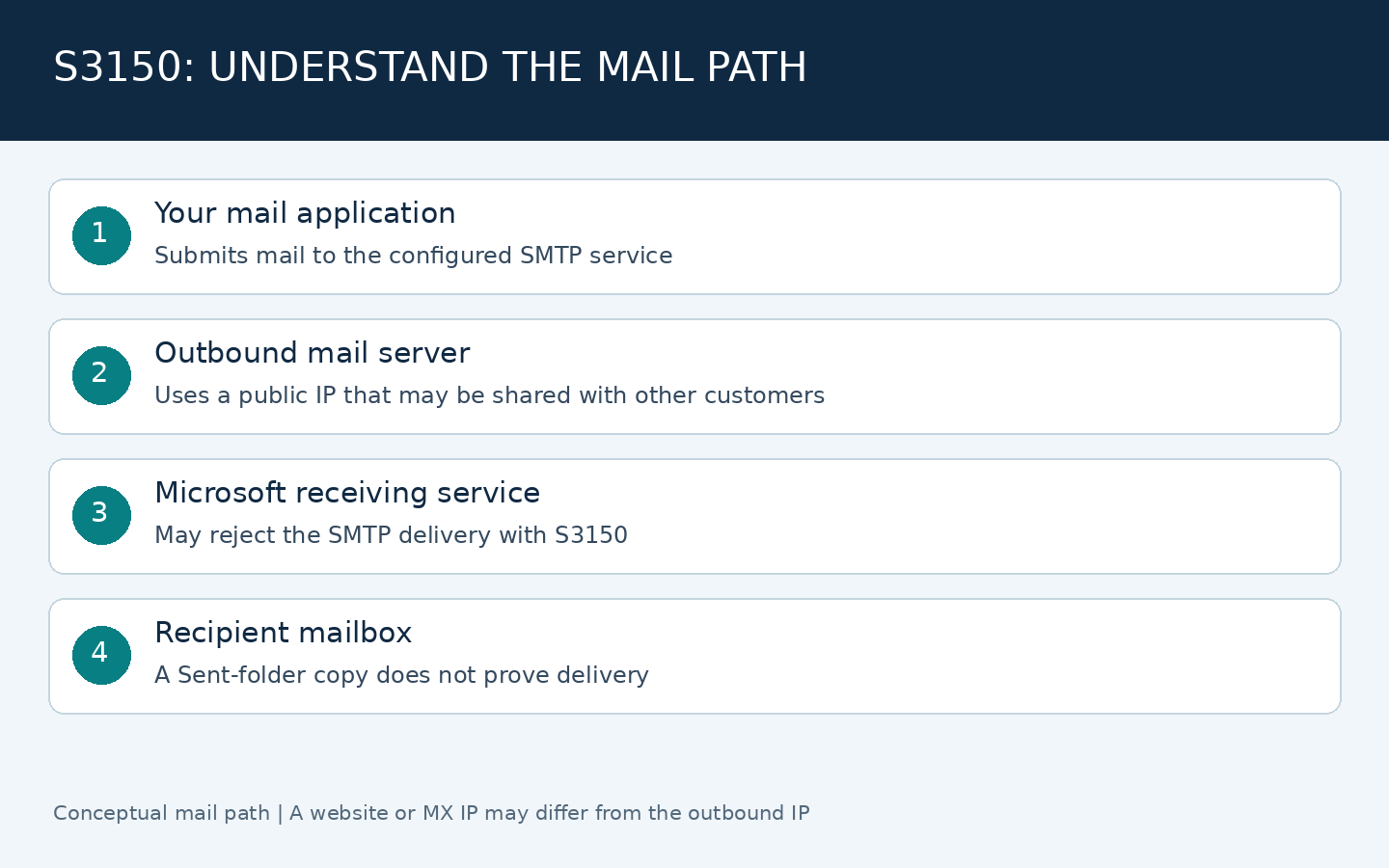
A Sent-folder copy proves that your mail application submitted the message; it does not prove that the recipient’s server accepted it. A permanent SMTP rejection is different from a message accepted into the recipient’s junk folder. Reinstalling the Outlook desktop app does not resolve an upstream sending-IP rejection.
Step 1: identify the actual outbound IP
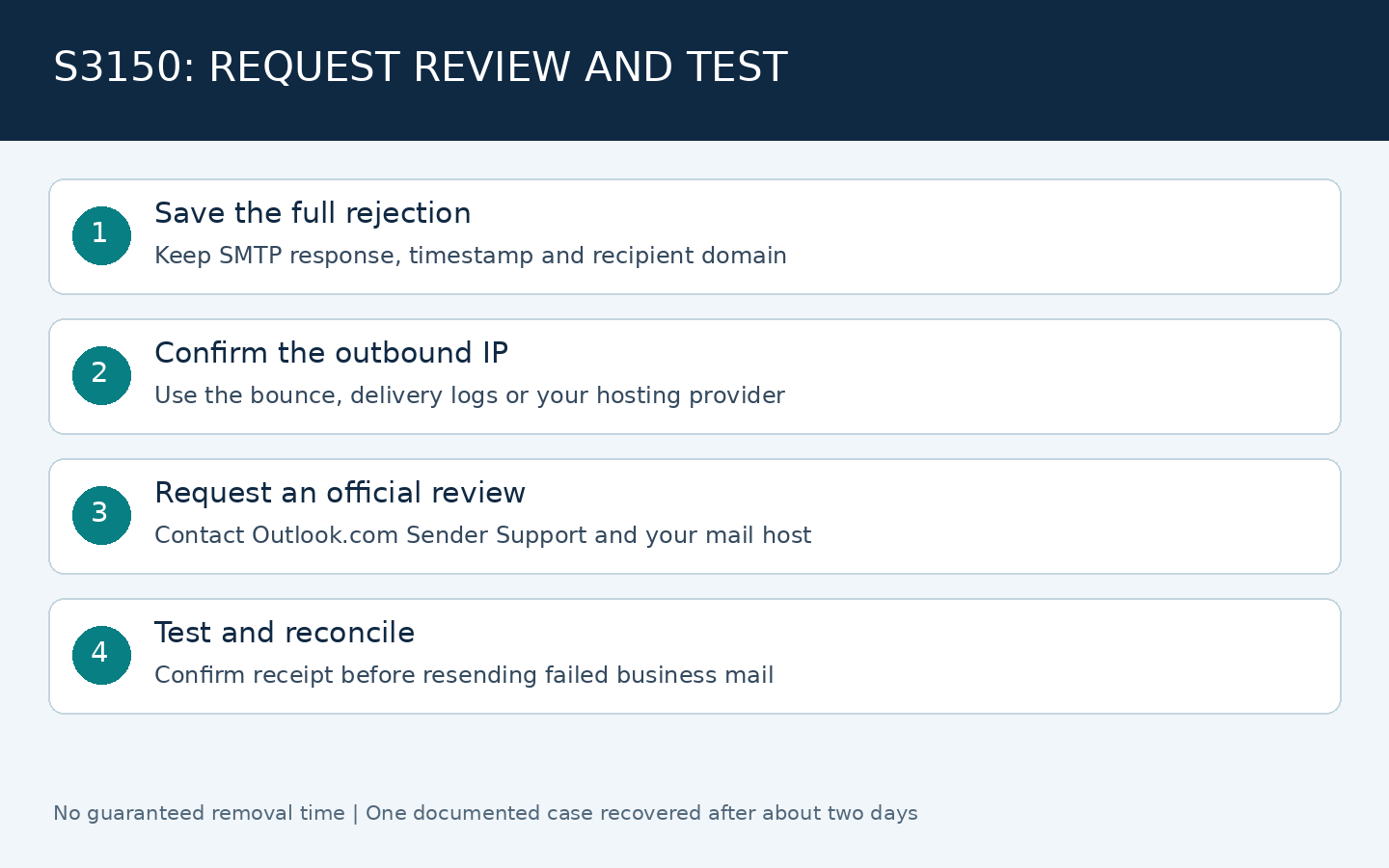
- Save the entire non-delivery report, including the diagnostic response, timestamp and recipient domain.
- Find the IP in the rejection text or ask your mail host to identify the public outbound IP from delivery logs.
- Confirm whether the problem affects Outlook.com, Hotmail, Live or MSN recipients while other destinations work.
- Ask whether the outbound IP is shared and whether the provider is already coordinating a review.
The IP behind your website’s A record and the IP in your incoming MX records may be different from your SMTP egress IP. Do not submit a DNS lookup result as the blocked IP without verifying the actual mail path. A hosted service may use a pool of outbound addresses, so more than one IP may appear across failed attempts.
Step 2: contact Outlook.com Sender Support
Use Outlook.com Sender Support, reached through Microsoft’s official sender guidance. A Microsoft sign-in may be required. For shared hosting, give the provider the original rejection and ask it to investigate the sending network as well.
| Information | What to provide |
|---|---|
| Sending domain | The domain used for legitimate mail. |
| Recipient domain | For example outlook.com or hotmail.com. |
| Outbound IP | The public sending IP verified from the bounce or logs. |
| Server type | Shared or dedicated, as confirmed by the provider. |
| Error | The complete SMTP diagnostic, not only S3150. |
| Contact address | A mailbox you can receive replies at. |
Use a concise explanation such as the following. Replace every bracketed placeholder. Share required diagnostic details privately with official support, rather than posting the full bounce publicly.
We are unable to deliver legitimate email to Outlook.com recipients.

Sending domain: [your sending domain]
Outbound IP: [verified public outbound mail IP]
Server type: [shared or dedicated]
Affected recipient domain: [recipient domain]

The SMTP response includes S3150:
[paste the complete diagnostic response]

Please review the block affecting this sending IP.
We are working with our mail provider to investigate the issue.
Step 3: investigate the cause with your provider
Microsoft’s sender troubleshooting guide explains that IP/domain reputation, authentication, list quality, complaint rates and content influence filtering. It also says a support submission does not guarantee delivery. S3150 by itself does not reveal the precise trigger.
- Review outbound volume and unusual spikes against your normal pattern.
- Check for compromised accounts, unexpected senders and unauthorized relaying.
- Verify SPF authorization, DKIM signing and DMARC alignment for the real sending path.
- Remove invalid recipients and honor unsubscribe requests for mailing lists.
- Follow your provider’s documented rate and recipient limits. There is no universal safe BCC count that guarantees delivery.
With shared hosting, multiple customers can use one public sending IP. Activity elsewhere in that pool can affect reputation, but a shared IP is not proof of the cause in your case. Ask the host for evidence and remediation rather than assuming another customer is responsible.
Step 4: test delivery before resending
After support or your provider reports progress, send one ordinary test message to an account you control or a cooperating recipient. Confirm actual receipt and check the SMTP log or any new bounce. If the sending service rotates IPs, note which IP handled the test.
Reconcile failed messages before resending business mail. A message that was permanently rejected usually requires deliberate resubmission, but another attempt in the same thread may already have succeeded. Blindly resending the whole batch can produce duplicates.
Outlook.com support and Microsoft 365 delisting are different
Consumer Outlook.com delivery and business Exchange Online protection are different support contexts. The Microsoft 365 delist portal should not be treated as an interchangeable S3150 fix. Follow the destination and instructions in your exact rejection.
Frequently asked questions
Will adding me to Safe Senders solve it? A recipient-side setting does not reliably remove a network-level SMTP block. Verify server acceptance first.
How long does removal take? Our documented case recovered after about two days. No general recovery deadline was verified.
Can I keep retrying? Repeated identical attempts do not establish that the cause is fixed. Coordinate with the provider, correct identified issues and use a controlled test.
Sources and Japanese edition
Microsoft Outlook.com Postmaster; Microsoft troubleshooting; Japanese case report and guide. Published November 18, 2026 (JST). No private server IPs, support IDs or recipient addresses are included.